



Ordnerverwaltung
Die Ordnerverwaltung in acmp ist ein zentrales Element, um Inhalte der jeweiligen Solution zu strukturieren und übersichtlich zu organisieren. Ein Ordner ist selbst keine eigenständige Datei, sondern enthält dabei z.B. erstellte Client Commands, Job Collections, Abfragen oder Angaben aus den Stammdaten (Dokumente, Verträge). Ordner sind Teil vieler Bereiche und lassen sich, sofern sie vorhanden sind, unter dem gleichnamigen Bereich in der Ribbonleiste bearbeiten. Die Bearbeitungsmöglichkeiten bestehen dabei aus den folgenden drei Aktionen:  Hinzufügen,
  Bearbeiten und
  Löschen.
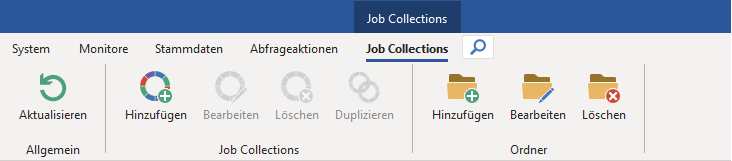
Beispiel für einen Ordner Import
Ordner hinzufügen
Unabhängig davon, in welchem Bereich Sie die Elemente anlegen wollen, ist die Voraussetzung zunächst, einen Ordner hinzuzufügen. In diesem Beispiel soll ein neuer Ordner für die Abfragen der Kategorie „Helpdesk“ erstellt werden. Klicken Sie hierfür in der geöffneten acmp Console (Client Management > Abfrageverwaltung) in der Ribbonleiste auf  Hinzufügen. Für die Erstellung eines Ordners werden Sie nun durch einen dreiseitigen Wizard geleitet.
Unter Allgemein müssen Sie einige grundlegende Informationen für den Ordner angeben, hierzu gehört der Zielordner, unter dem der Ordner gelegt werden soll, sowie ein Name. Über den Button  können Sie den Zielordner anpassen, sollten Sie mit der Vorauswahl nicht zufrieden sein. Beachten Sie, dass es nicht immer einen Zielordner geben muss und Sie diesen z.B. auch direkt auf der Hauptebene anlegen können. Klicken Sie anschließend auf Weiter >.
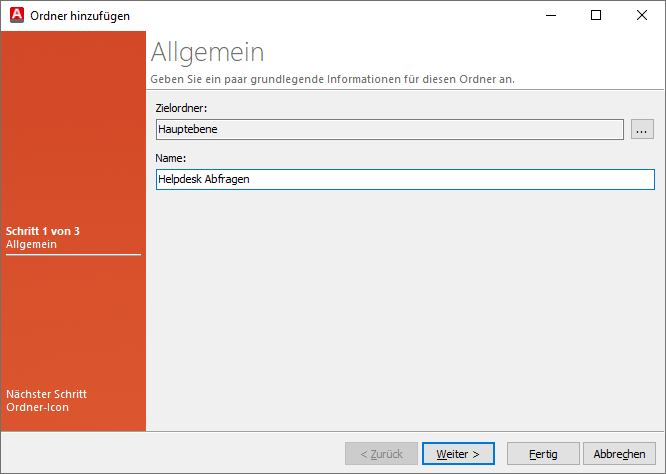
Ordner hinzufügen (Allgemein)
Unter Ordner-Icon können Sie für Ihren Ordner nun ein passendes Icon vergeben. Verwenden Sie eines der mitgelieferten Icons oder laden Sie ein eigenes hoch.
Tipp: Möchten Sie lieber individuelle Icons verwenden, können Sie diese hierrüber hochladen ( ) oder etwas an der Benennung (
 ) ändern. Soll ein Icon dauerhaft gelöscht werden (
 ), ist dies auch möglich. Beachten Sie, dass die Icons im *.bmp- oder *ico-Format vorliegen müssen und nicht die Größe von 16x16 Pixel überschreiten dürfen, da ansonsten nur ein Teilstück der Ursprungsdatei genutzt werden kann. Möchten Sie wieder ein Standard Icon auswählen, klicken Sie auf
  . Speichern (
 ) Sie die Änderungen zum Schluss.
Hinweis: Die Änderungen die Sie hier vornehmen, gelten Solution übergreifend. Ein hochgeladenes Icon wird Ihnen auch in anderen Bereichen angezeigt oder wird, im Falle einer Löschung, auch woanders dann fehlen.
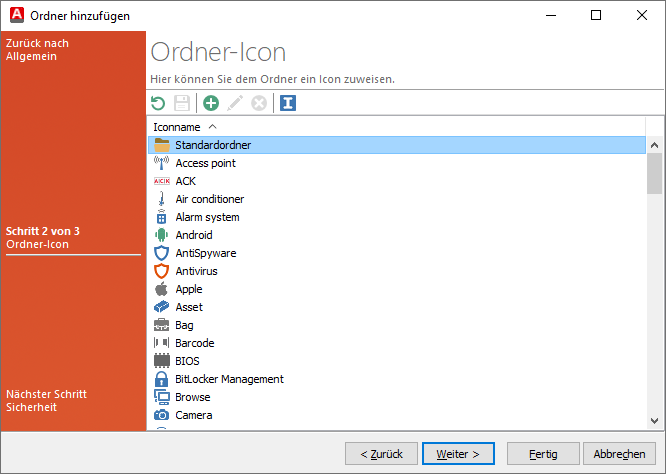
Ordner-Icon
Klicken Sie erneut auf Weiter >, um fortzufahren.
Auf der letzten Seite des Wizards können Sie die Sicherheit des Ordners festlegen: Welche Gruppen und welche Benutzer dürfen den Ordner sehen. Lesen Sie hierzu mehr im Kapitel Access Listen (ACLs) nach, wie Sie beispielsweise die Berechtigungen dafür verteilen können.
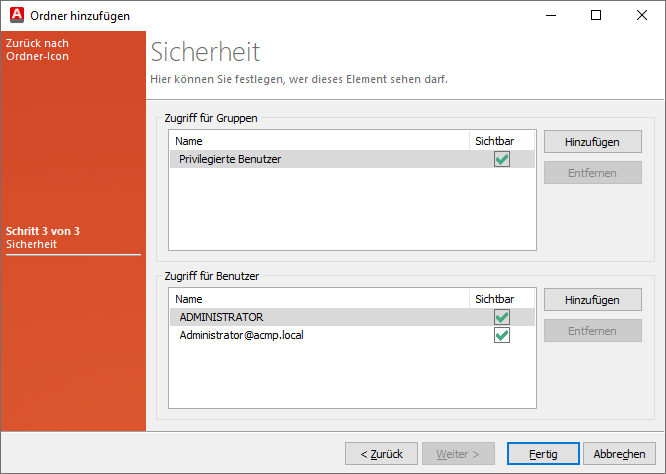
Berechtigungen und Zugriff für den Ordner erstellen
Beenden Sie Ihre Arbeiten und klicken Sie auf Fertig. Der neu angelegte Ordner wird auf der Zielebene erscheinen.
Ordner bearbeiten oder löschen
Ordner lassen sich nach der Erstellung bearbeiten, verschieben oder gänzlich löschen. Um an einem bestehenden Ordner Änderungen vorzunehmen, wählen Sie diesen aus und klicken Sie auf  Bearbeiten. Es öffnet sich ein Fenster, in dem Sie Angaben korrigieren bzw. anpassen können. Die Tabs sind dabei in der gleichen Reihenfolge, wie im Abschnitt Ordner hinzufügen auch (Allgemein, Ordner-Icon und Sicherheit).
Um einen Ordner zu entfernen, wählen Sie diesen aus und klicken Sie in der Ribbonleiste auf  Löschen und bestätigen Sie Sicherheitsfrage.
Ordner importieren
Eine Besonderheit stellt die Funktion  Ordner importieren dar, die explizit in folgenden Bereichen verfügbar ist:
- Abfrageverwaltung (Client Management > Abfrageverwaltung)
- Reports (Client Management > Reports)
- Client Commands (Desktop Automation > Client Commands > Erstellen)
- Ticket Management (Helpdesk > Ticket Management)
Hierüber lassen sich bestehende Ordnerstrukturen, die beispielsweise auf einem anderen acmp System angelegt oder als Backup gesichert wurden, (erneut) einpflegen.
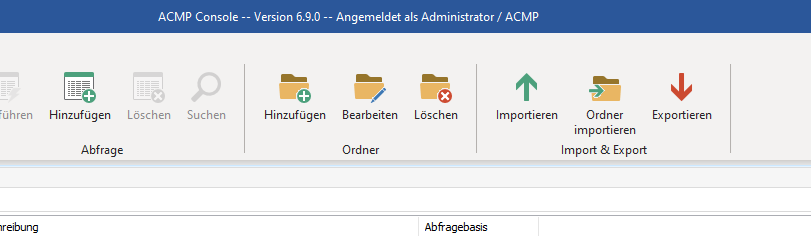
Ordner importieren in der Abfrageverwaltung
Wenn Sie die Aktion aufrufen, öffnet sich ein Dialog für eine Ordnerauswahl, in der Sie den Ordner auf Ihrem Computer auswählen müssen, der dann importiert werden soll. Beachten Sie, dass der Ordner in verschachtelten Strukturen (z.B. große Umgebungen mit vielen Abfragen) stets auf die Ebene hineingeladen wird, die ausgewählt war.
 Hinweis:
 Wenn Sie einen Ordner als Unterverzeichnis importieren wollen, markieren Sie zunächst den Ordner, in welchen der neue Ordner importiert werden soll. Wenn dieser Ordner zuvor exportiert wurde, befindet sich in diesem die Konfigurationsdatei „.fex4“, in der individuelle Einstellungen des exportierten Ordners gespeichert sind. Der Ordnerimport ist auch über das Kontextmenü zu erreichen.
Besonderheiten in den einzelnen Bereichen
- Abfrageverwaltung/Helpdesk/Reports: Beim Import eines Ordners werden Sie gefragt, ob Sie die Sicherheitseinstellungen der ausgewählten Einträge mit exportieren wollen. Sie können dabei entscheiden, ob die Einstellungen sowohl für die Abfrage als auch für den Ordner gelten oder, ob keine Sicherheitseinstellungen einbezogen werden sollen.
- Client Commands: Wenn Sie einen Ordner innerhalb der Client Commands importieren, werden Sie gefragt, ob Sie die Original-ID der Commands beibehalten wollen.