


Tools
Manage Global Variables
Clicking the Manage Global Variables icon opens a window where you can manage global variables. This includes deleting, adding, and changing default values.
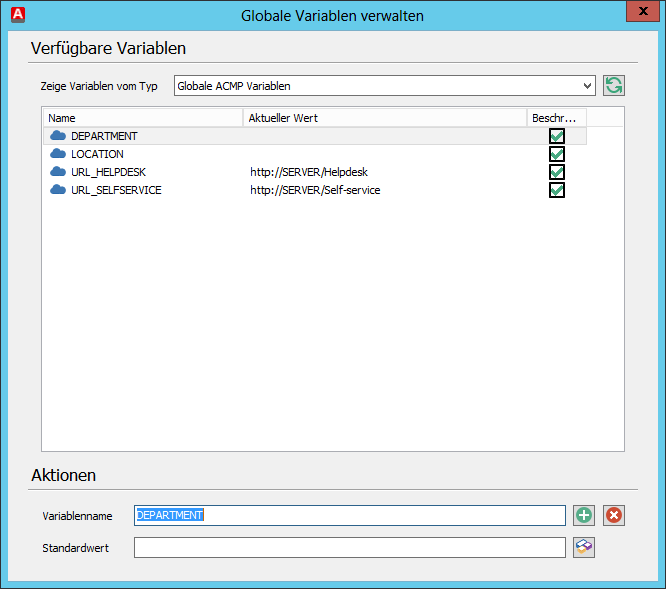
Manage Global Variables
Global variables are handled in the same way as simple variables. For more information on simple variables, see the chapter Variables.
Functions
Functions are used to provide frequently used command sequences for Client Commands. Using Manage Functions, you can create, delete, import, and export functions. Functions are integrated into a Client Command using the “Execute function” command.
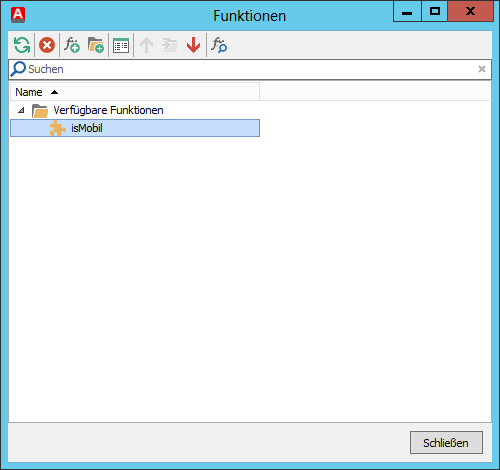
Manage functions
| Refreshes the view |
| Deletes the selected functions |
| Creates a new function |
| Creates a new folder |
| Displays the functions as a list or in the standard tree view. |
| Importes a function |
| Importes all functions under a specified path |
| Exports all functions within a selected folder |
| Displays the selected function in read-only mode |


To create a new function, choose a folder in the dialog and click the New Function icon in the quick selection bar. An editor opens that is (almost) identical to the editor for Client Commands. However, there is no distinction here between client and console scripts, which is why all commands are available. To define a return value for a function, you’ll find the additional command “Set function result” in the “Functions” category of the editor.
In addition to the differences mentioned above, there are others between Client Commands and functions. For example, functions cannot be versioned. Furthermore, the files used by a function are not synchronized and are therefore loaded directly from the ACMP Server each time the function is called. Therefore, you should avoid creating functions that need to load folders or files.
 Note:
Note: Copying acmp AutoMATE
acmp AutoMATE allows you to record actions on a Windows client. The recording can later be executed via acmp on managed network clients, allowing, for example, software installations to be performed automatically and unattended.
You can learn exactly how to create and use AutoMATE scripts in the chapter Using AutoMATE.