



Client Command Variables
Variables are used to pass values to commands, store specific values, or act as result variables whose values are then passed to subsequent commands.
There are four types of variables in acmp.
These differ in their usage:
 | Project variables | These variables exist only in the current project and cannot be used in other projects. |
 | Console Variables | These variables are available throughout the acmp environment and can be used in all projects. However, they cannot be created and are automatically populated by acmp during execution. As a result, users cannot modify them. |
 | System variables | These variables describe the current environment in which the Client Command is to be executed. This makes it easy to retrieve, for example, computer-specific information as well as values from the ACMP Server (name, directories, operating system). These variables are read-only. |
 | Global acmp variables | These variables contain general configuration values that are defined in advance. These variables and their values are available to every Client Command. Whether a global variable should be writable or read-only can be defined in advance for each individual variable in the ACMP Console. |
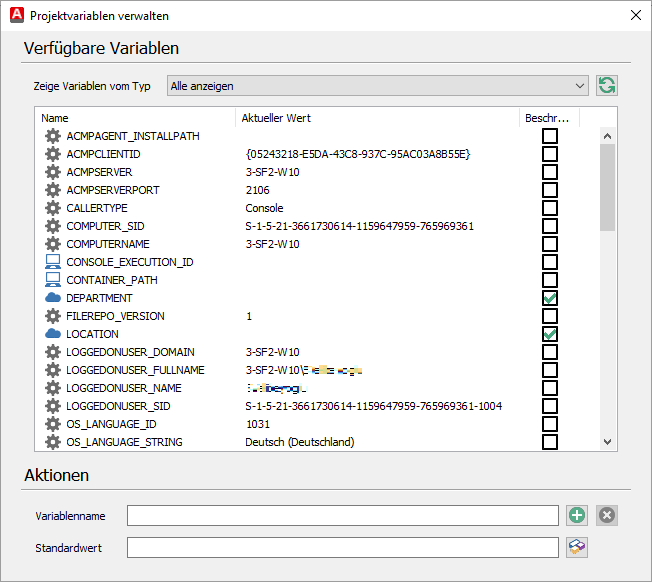
Available Variables
General Information on Working with Variables
Variables are important components of Client Commands. They are always written with a % sign before and after the variable name, e.g., %DOWNLOAD_PATH%. Variable names are not case-sensitive. To create a new variable or manage existing variables, click the icon in the menu bar of the Client Command Editor.
 Note:
Note: When you create a Client Command, you can use the shortcut Ctrl + Spacebar within the commands to open the variable selection and choose the variable you need.
Variables and Values
In acmp, variables can contain all kinds of values. The value of a variable is always treated as a comma-separated list, so it is also possible to list multiple attributes with their values in this list. In the following example, a new project variable named MY_VARIABLE was created, which contains a list of several attributes—Prop1, Prop2, and Prop3—as its default value. The attributes in the list are separated by commas, and each attribute has its own value.
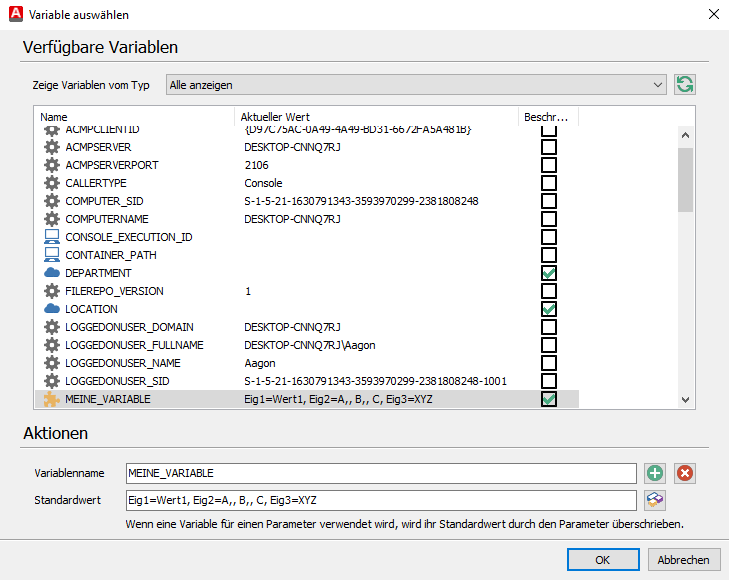
Newly created project variable with a comma-separated list as its default value
Syntax of Values
When working with variables and values, there are several syntax rules to follow, which are illustrated by the example of the default value Eig1=Wert1,Eig2=A,, B,, C,Eig3=123 for the variable %MEINE_VARIABLE%:
- NO space may be used after a comma that separates attributes
- To use a comma within an attribute value, a double comma must be used to escape it (see Eig2=A,, B,, C)
- Spaces may be used within an attribute value
Retrieving Variables and Values
If you want to retrieve a variable or a specific attribute value of a variable in your Client Command, you can use the Ctrl + Spacebar shortcut to open the variable selection and navigate using the arrow keys, or use the letter quick search to jump to the desired variable. After inserting the variable, you can expand it with an attribute to access a specific attribute value. The variable must be expanded using the format %VariableName.Attribute%.
In the following example, the Dialogs command is used to display the value of the variable %MY_VARIABLE% with the attribute Eig2 and to test the output with commas in an attribute value:
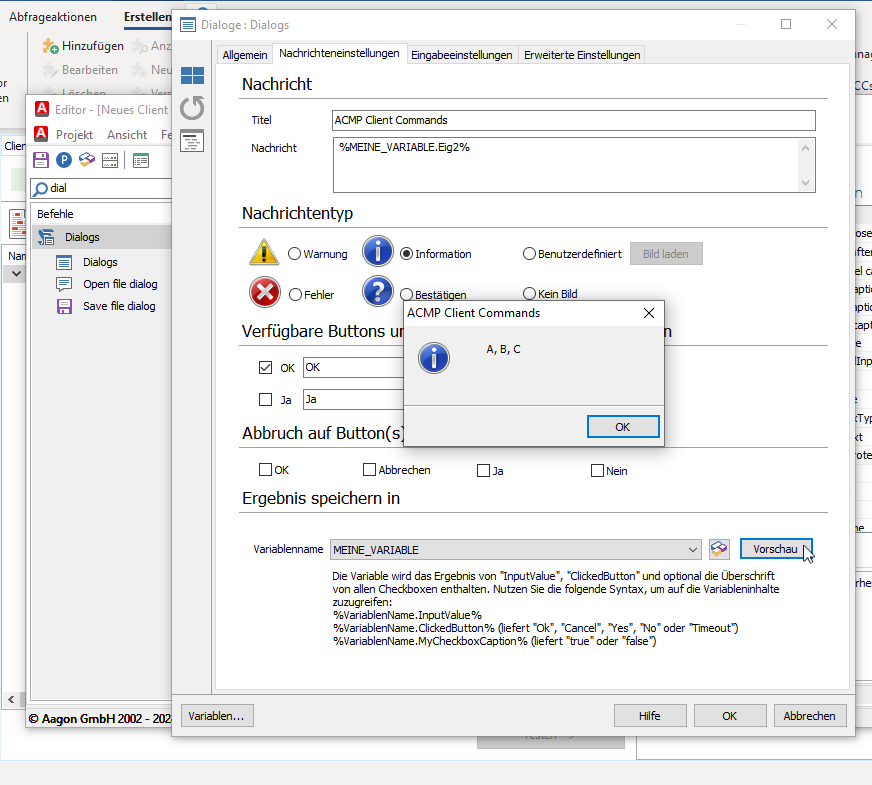
Printing the variable with an attribute: %MY_VARIABLE.Prop2%
Project Variables
Project variables are variables that are active only for the duration of a specific Client Command and are therefore intended for use only with that one Client Command.
They are available only within the specific Client Command in which they were defined. This means that once the Client Command is finished, the project variable can no longer be accessed.
In addition, Parameter can be defined for project variables; these act as settings specific to the Client Command and are passed only to that Client Command.
Console Variables
Variables of type Console are populated dynamically when the script is executed.
| Name | Description |
| CONSOLE_EXECUTION_ID | Contains a GUID that uniquely identifies the execution of the console script. |
| CONTAINER_PATH | If a Client Command is added to a container as a job, this variable is populated with the path when the command is executed on the client via the container. You can view a preview of the value in the container plugin for the corresponding container. You can also view this value in the container view, e.g., acmp.local/Aagon/Soest/Computer. |
| SELECTED_CLIENTS | If a Client Command is executed as a “push” from an ACMP Query Result, this variable is populated. It contains a list of all Client IDs of agents that were selected in the Query Result. It is not recommended to work directly with this variable; instead, use the Iterate Selected Clients Command. At runtime, the variable is populated as follows: 0={ACMP ID of the first client}, 1={ACMP ID of the second client}, 2={ACMP ID of the third client}, etc. |
| SELECTED_COMPUTERNAMES | If a Client Command is executed as a “push” from an acmp Query Result, this variable is populated. The variable contains a list of all the computer names of the agents that were selected in the Query Result. It is not recommended to work directly with this variable; instead, use the Iterate Selected Clients Command. At runtime, the variable is populated as follows: 0={ACMP ID of the first client}, 1={ACMP ID of the second client}, 2={ACMP ID of the third client}, etc. |
| SELECTED_IPADDRESSES | When a client command from an ACMP Query Result is executed as a push, this variable is populated. The variable contains a list of all IP addresses of the agents that were selected in the Query Result. It is not recommended to work directly with this variable; instead, use the Iterate Selected Clients Command. At runtime, the variable is populated as follows: 0={ACMP ID of the first client}, 1={ACMP ID of the second client}, 2={ACMP ID of the third client}, etc. |
| SELECTED_LASTLOGGEDONUSERS | If a Client Command from an ACMP Query Result is executed as a “push,” this variable is populated. The variable contains a list of all recently logged-in users that were selected in the Query Result. It is not recommended to work directly with this variable; instead, use the Iterate Selected Clients Command. At runtime, the variable is populated as follows: 0=User1, 1=User2, 2=User3, etc. User1 is the most recently logged-in user on the first Client from the selected Query Result; User2 is the most recently logged-in user on the second Client; and so on. |
| SICS_ROUTING_KEY | If a Client Command is added as a job to a container, this variable is populated with the path via the container during execution on the client. You can view a preview of the value in the container plugin for the corresponding container. You can also view it in the container view, e.g., acmp.local.Aagon.Soest.Computer. |
System Variables
These variables describe the current system on which the Client Command should be executed. This makes it easy to retrieve system-specific values (e.g., computer name, server port name, any directories, or even the operating system).
The system variable CallerType plays a special role, which is explained in more detail below.
CallerType
In every Client Command, it is possible to distinguish how it was launched. The system variable CallerType is used to make this distinction.
%CallerType% can take the following values:
| GUI | If a client command was executed via the ACMP Kiosk or from the Command Launcher on a client, %CallerType% takes on this value. |
| CONSOLE | If the Client Command was executed automatically from the ACMP Console, the %CallerType% is set to this value. |
| CLIENTSVC | If the Client Command was executed as a job—either once or on a recurring basis—the %CallerType% will take on this value. |
| RUNCC | If the Client Command was called via RunCC or WRunCC, %CallerType% will take on this value. If the Client Command is started via Run Client Command %CallerType% will also return the value RUNCC. |
| Rollout | If the Client Command was called during the post deployment phase of acmp OS Deployment, this %CallerType% is returned. |
Global ACMP Variables
ACMP variables can be used to retrieve properties that apply globally to the ACMP Console. These global variables and their values are available to every Client Command.
You can define the global variables in the ribbon bar under Client Commands > Tools > Manage Global Variables.
The following variables are included by default:
| DEPARTMENT | The global variable “DEPARTMENT” is used by the included Client Commands “Client Location” and “Client Location (Configuration)” in the “Data Collection” folder. |
| LOCATION | The global variable “LOCATION” is used by the included Client Commands “Client Location” and “Client Location (Configuration)” in the “Data Collection” folder. |
| URL_HELPDESK | This variable is used in the “Create Helpdesk Shortcut” Client Command. |
| URL_SELFSERVICE |