



Offline Scanner
The offline scanners can be used to inventory Windows and Unix clients that are not connected to the network. In general a system-specific scanner will be executed on the client that should be inventoried.
The found data is stored in a results file. This file can be added to the ACMP Console using the import function, and the client's inventory data is then available.
Run Windows offline scanner
The execution file for the offline scanner for Windows clients is located in the directory %PROGRAMFILES(x86)%\Aagon\ACMP Console\Bin\ACMPOfflineScanner. With the ACMP Console open, you can open this directory by clicking the Offline Scanner Copy button in the ribbon bar.

Copy Offline Scanner
To run the Offline Scanner, the entire file directory must be available on the Windows client which you want to be inventoried. To do this, proceed as follows:
- Make the file directory available on the client (e.g., via USB stick or share in another network that is accessible to the client).
- Run the ACMPOfflineScanner.exe file.
- Configure the execution of the offline scanner. You can specify which scanners should be run and where the scan data should be stored. You can also specify whether this directory should be displayed after the scan. If you do not customize the target directory for the scan data, a directory will be created next to the .exe-file and the scan data will be stored there. The configuration data is stored in the file OfflineScannerSettings.xml.
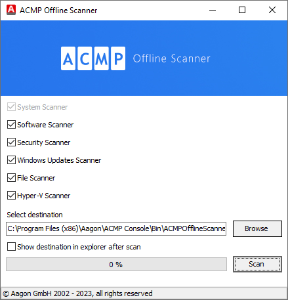
- Click Scan to start the scan. You can see the scan progress in the progress bar.
 Note:
Note: There is now an *.aos file in the previously selected directory. The name of this file corresponds to the computer name on which the Offline Scanner was executed. You must now make this data available again on a client that has an ACMP Console. In the next step, you can import this file with the scan data into the ACMP console.
Configuration of the included scanners
The scanners available in the Windows Offline Scanner and descriptions of their configurations are listed below:
| Scanner | Description |
| System Scanner | The System Scanner cannot be deactivated. It scans the client's hardware and also reads the computer name. |
| Software Scanner (optional) | The Software Scanner scans the installed software. It distinguishes between the following types of already installed software:
All installations are displayed in the client details. |
| Security Scanner (optional) | The Security Scanner scans the system for antivirus software and displays it in the Client Details. |
| Windows Update Scanner (optional) | The Windows Update Scanner scans the status of the Windows installation. It displays Windows updates that are already installed and Windows updates that are still available in the Client Details. |
| File Scanner (optional) | The File Scanner scans the system for executable files. It thus supplements the data collected by the Software Scanner on installed software and lays the foundation for license management. |
| Hyper-V Scanner (optional) | The Hyper-V Scanner scans the system for existing instances of Hyper-V. If a corresponding connection is detected, it is displayed in the Client Details. |
| Select Destination | Here you can select the location where the scan data should be saved. If you do not make any adjustments, the data will be saved in a new directory next to the exe. The file name corresponds to the computer name. |
| Show destination in explorer after scan | Specify whether you want the storage location of the scan data to be displayed in Windows Explorer after the scan is complete. |
Windows Offline Scanner - Parameters
The Windows Offline Scanner can also be used via the command line. The following parameters are available:
| Parameter | Description |
| /s or /silent | The ACMP Offline Scanner is executed in silent mode. |
| /help or /? | Call up help |
| /ScanDataFolder | Specify the path for saving the scan data. |
| Example: /ScanDataFolder=“Path” | |
| If this parameter is not set, the directory ScanData is created next to the exe file, in which the scan data is stored. This parameter requires /s. Example: /ScanDataFolder=“Path” | |
| /SkipSoftware | If this parameter is specified, the software scanner will not be executed. This parameter requires /s. |
| /SkipUpdate | If this parameter is specified, the Windows Update scanner will not be executed. This parameter requires /s. |
| /SkipSecurity | With this specification, the Security Scanner is not executed. This parameter requires /s. |
| /SkipFiles | With this specification, the file scanner is not executed. This parameter requires /s. |
| /SkipVirtualization | With this specification, the Hyper-V scanner is not executed. This parameter requires /s. |
Run Unix Offline Scanner
The execution files for the offline scanner for Unix clients are located in the directory %PROGRAMFILES(x86)%\Aagon\ACMP Server\Clients\Unix Offline Scanner 1.11.2. There are several subdirectories for specific Linux and MacOS operating systems.
To run the Unix Offline Scanner, the appropriate file directory must be available on the Unix client to be inventoried. To do this, proceed as follows:
- Make the required file directory available on the client (e.g., via USB stick or share in another network accessible to the client).
- If necessary, adjust the configuration file appsettings.json.
- Make the file executable using the following Bash command chmod +x ./Aagon.UnixOfflineScanner.
- Run the Unix Offline Scanner using the following Bash command: sudo ./Aagon.UnixOfflineScanner.
There is now an *.aos file in the directory. You must now make this data available again on a client that has an ACMP console. In the next step, you can import this file with the scan data into the ACMP console.
Unix Offline Scanner - Parameters
The following parameters are available for advanced configuration of the Unix Offline Scanner:
| Parameter | Description | |
|---|---|---|
| --EnableLogging | Enables logging | |
| --LoggingPath ‘path’ | Target directory for log files | |
| --GeneratedXmlPath ‘path’ | Destination directory for generated XML files | |
| --MaxLogFileSize ‘val’ | Maximum log file size in MB | |
| --MaxNumberOfLogFiles ‘val’ | Maximum number of log files to keep | |
| --ExecuteScannersInParallel | Enable parallelization of data collection | |
| DisableScanner ‘list’ | List of scanners to be disabled Available scanners:
| |
| Config ‘path’ | Path to a configuration file | |
| ShowScannerList | Displays the list of available scanners. | |
| help, /? | Display help. |
Importing scan data into the ACMP Console
You can now import the scan data into the ACMP Console:
- Select the Query Actions tab in the ribbon bar.
- Click on the Import button.

- Navigate to the location of the *.aos file and select it.
The file with the scan data will now be imported. Once this is complete, you can view the client's inventory data via queries.