



Issuing a certificate to a client working from home
If a client is working from home and is therefore not on the local network, you can also issue a certificate to that client. Follow these steps:
If possible, the client should be physically connected to the local network at least once. You can then issue the certificate to the client in the Clients tab on the ribbon bar, in the Client certificates group, by selecting Create > Automatic Distribution. With this certificate, the client can then authenticate at the gateway and communicate with the acmp Server even when outside the network.
If it is not possible to connect the client to the local network even once, you, as the administrator, can issue the certificate manually. To do so, proceed as follows:
1. Create a certificate
Select the client in a Query and go to Create > Manual Deployment in the ribbon bar.
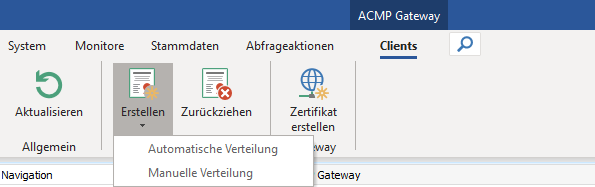
Button for Distribution Types
In the wizard that opens, specify how long the certificate should be valid and select the location where the newly created certificate will be saved. Click Run.
A ZIP file is created containing the client certificate and the associated key. This ZIP file can be transferred via Launcher.exe.
2. Transfer Files to the Client
This ZIP file must be transferred to the client via the most secure method possible, such as a USB drive or an encrypted email. The client user must unzip the file and copy both files to the %ProgramData%\Aagon\ACMP\Client directory.
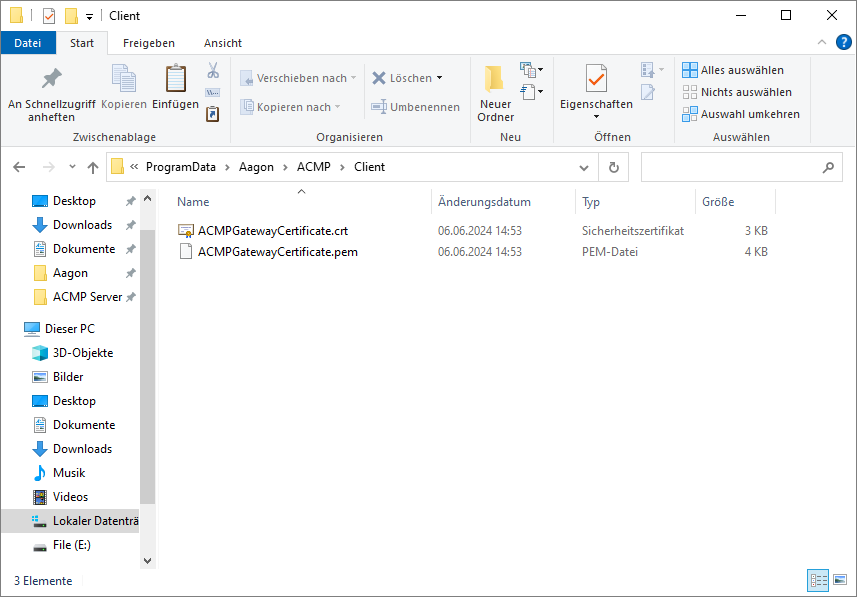
Certificates Stored in the Directory
3. Restart the system
Afterward, either the computer or the acmp Client service must be restarted. Once this is done, the administrator will see the distribution mode listed as “Deployed” in the client view.
The Gateway will now allow the connection from the authenticated and authorized client working from home. The manual certificate is also automatically renewed 30 days before it expires, just like the automatic certificate. This runtime is set by default and can be configured in Scheduled Server Tasks.
 Note:
Note: