



Registry-Einträge vom CAWUM überprüfen
Ausgangslage
Sobald ein Client im Windows Update Management als „Managed by WUM“ geführt wird, setzt acmp automatisch die erforderlichen Registry-Einträge auf dem jeweiligen System.
Dabei werden vorhandene, zuvor gesetzte Einträge in der Regel überschrieben, sodass sie keinen Einfluss mehr auf den Update-Prozess haben.
Treten dennoch Probleme auf, empfiehlt es sich, die entsprechenden Registry-Einträge manuell zu überprüfen.
Registry-Pfade öffnen
- Stellen Sie zunächst sicher, dass die betroffenen Clients im Reiter „Managed by WUM“ aufgeführt sind und tatsächlich über acmp verwaltet werden.
- Öffnen Sie anschließend den Registrierungs-Editor über Win-Taste + R und geben Sie regedit ein.
- Navigieren Sie zu den relevanten Registry-Pfaden, um die gesetzten Werte zu prüfen. Sobald ein Client über CAWUM verwaltet wird, sollten die entsprechenden Registry-Keys automatisch vorhanden sein.
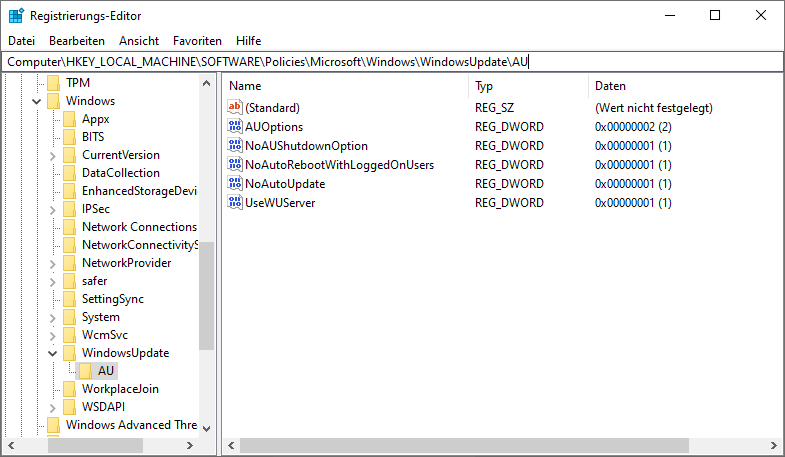
Ansicht des geöffneten Registrierungs-Editors
Liste der Registry-Einträge
| Registrykey | Beschreibung |
|---|---|
[HKEY_LOCAL_MACHINE\SOFTWARE\Policies\Microsoft\Windows\WindowsUpdate] | |
| "WUServer"="https://127.0.0.1:8530" | Definiert den Windows Update Server, von dem der Client Updates bezieht. Bei CAWUM verweist dieser Wert auf den lokalen acmp-Update-Service. |
| "WUStatusServer"="https://127.0.0.1:8530" | Gibt den Server an, an den der Client Status- und Rückmeldedaten zu installierten Updates sendet. Ebenfalls der lokale CAWUM-Dienst. |
| "UpdateServiceUrlAlternate"="https://127.0.0.1:8530 | Alternative Update-Service-URL. Stellt sicher, dass Windows Update ausschließlich den CAWUM-Service nutzt. |
| "DisableDualScan"=dword:00000001 | Deaktiviert den Dual Scan. Verhindert, dass Windows Updates parallel über Microsoft Update und einen internen Update-Server sucht. |
[HKEY_LOCAL_MACHINE\SOFTWARE\Policies\Microsoft\Windows\WindowsUpdate\AU] | |
| "NoAutoUpdate"=dword:00000001 | Deaktiviert die automatische Update-Suche und Update-Installation durch Windows. |
| "NoAUShutdownOption"=dword:00000001 | Entfernt die Option „Updates installieren und herunterfahren“ aus dem Windows-Herunterfahren-Menü. |
| "AUOptions"=dword:00000002 | Legt das Update-Verhalten fest. Wert 2 bedeutet: Updates werden gemeldet, aber nicht automatisch installiert. |
| "UseWUServer"=dword:00000001 | Erzwingt die Nutzung des unter WUServer definierten Update-Servers (CAWUM) anstelle von Microsoft Update. |
| "NoAutoRebootWithLoggedOnUsers"=dword:00000001 | Verhindert automatische Neustarts nach Updates, solange ein Benutzer am System angemeldet ist. |
HKEY_LOCAL_MACHINE\SOFTWARE\Policies\Microsoft\Office\16.0\Common\OfficeUpdate | |
| OfficeMgmtCOM=1 | Übergibt die Update-Verwaltung von Office an ein zentrales Management-Tool, hier an acmp. |
 Hinweis:
 Hinweis zur Vollständigkeit der Registry-Einträge
Die in der Tabelle aufgeführten Registry-Einträge stellen die zentralen und für den Betrieb relevanten Schlüssel dar, die von acmp/ CAWUM im Rahmen des Windows- und Office-Update-Managements verwendet werden.
Es handelt sich nicht um eine vollständige Auflistung aller durch acmp gesetzten oder beeinflussten Registry-Keys.
Darüber hinaus existieren zahlreiche weitere eigene Windows Registrykeys, die von acmp nicht aktiv verwaltet werden und daher in dieser Tabelle nicht enthalten sind.
Aktive GPOs anpassen
Sollten noch aktive GPOs vorhanden sein, die die oben genannten Registry-Werte beeinflussen oder im Pfad
HKEY_LOCAL_MACHINE\SOFTWARE\Policies\Microsoft\Windows\WindowsUpdate
abweichende Einstellungen setzen, müssen diese GPOs deaktiviert oder angepasst werden.
Eine einfache Methode dies zu ermitteln ist folgende:
1. Beenden Sie zunächst den acmp Client Dienst.
2. Löschen Sie anschließend den Registry-Schlüssel:
HKEY_LOCAL_MACHINE\SOFTWARE\Policies\Microsoft\Windows\WindowsUpdate
3. Führen Sie danach in einer administrativen Eingabeaufforderung den Befehl
gpupdate /force aus.
4. Prüfen Sie im Anschluss, ob der Registry-Schlüssel
HKEY_LOCAL_MACHINE\SOFTWARE\Policies\Microsoft\Windows\WindowsUpdate
erneut angelegt wurde.
- Wird der Schlüssel wieder erstellt, stammt die Konfiguration aus einer oder mehreren aktiven GPOs. In diesem Fall ermitteln Sie bitte die entsprechenden GPOs und deaktivieren oder korrigieren diese.
- Wird der Schlüssel nicht erneut angelegt, liegt kein GPO-Einfluss vor. Starten Sie in diesem Fall den acmp Client Dienst wieder.
5. Löschen Sie anschließend den lokalen Windows-Update-Cache und führen Sie erneut einen Windows Update Scan über acmp aus.
6. Starten Sie abschließend den acmp Client Dienst erneut, um die Update-Verwaltung wieder vollständig zu aktivieren.