



Konfigurationsmöglichkeiten im Windows Update Management
- Konfiguration des Dashboards im Windows Update Management
- Produkte
- Klassifizierungen
- Jobs und Aufgaben
- Nutzung des System Jobs "Windows Update Cache zurücksetzen"
- Sync-Profile und verteilte File Repositories
- Windows Update Management CI Anpassungen (Neustart-Dialog)
- Konfiguration der Office 365 Apps Installation außerhalb von ACMP
- Besonderheiten zu den Display Fields im Windows Update Management
Innerhalb des Windows Update Managements haben Sie zahlreiche Konfigurationsmöglichkeiten. Diese beginnen bereits schon bei der Ersteinrichtung im First Steps Wizard, wo Sie beispielsweise explizit Produkte und Klassifizierungen aus- oder abwählen können und gehen so weit, dass Sie für Ihr eigenes Corporate Identity Änderungen treffen können, um so Logos oder Banner individuell anpassen zu können. In diesem Abschnitt erhalten Sie einen Überblick über die verschiedenen Bereiche, wo Sie Änderungen vornehmen können:
- Konfiguration des Dashboards im Windows Update Management
- Produkte
- Klassifizierungen
- Jobs und Aufgaben
- Nutzung des System Jobs "Windows Update Cache zurücksetzen"
- Sync-Profile und verteilte File Repositories
- CI Anpassungen vom Neustart-Dialog
- Konfiguration der Office 365 Apps außerhalb von ACMP
- Besonderheiten zu den Display Fields im Windows Update Management
Konfiguration des Dashboards im Windows Update Management
Dashboards bestehen aus verschiedenen Widgets, die Ihnen die wichtigsten Informationen zu einem Plugin liefern. Sie können für das Windows Update Management aus einer Auswahl verschiedener Widgets auswählen und so ein individuelles Dashboard anlegen:
| Client-Status | Das Widget zeigt die Anzahl der Clients mit spezifischen Status an. | |
| Festplattennutzung | Die Festplattennutzung zeigt den benutzten Speicherplatz an. Hierbei wird Ihnen anhand eines Diagramms angezeigt, wie sich die Belegung der Festplatte verteilt und wie viel Speicherplatz maximal benötigt wird. Unterteilt wird dies in:
| |
| Managed by WUM | Das Widget zeigt in Diagrammform die Anzahl der Clients an, die Managed by WUM und Nicht Managed by WUM sind. | |
| Status der WUM-Jobs | Das Widget zeigt die Status der Jobs des Windows Update Managements an. Sie können zusätzlich aus dem Widget den aktuellen Fortschritt des Jobs, sowie das Start- und Enddatum und das Ergebnis ablesen. Erfahren Sie mehr zu den hier hinterlegten Jobs und Download-Typen. | |
| Updates der Verteilungsring | Zeigt die Anzahl an Updates in den spezifischen Verteilungsringen an. Hierbei werden die verteilten Updates den Ringen aufgeteilt: Kein Verteilungsring, Testring 1, Testring 2 und Freigegeben.
| |
| Update-Status | Das Widget zeigt die Anzahl der Updates mit den jeweiligen Status an. | |
| Willkommen ebeim acmp Windows Update Management | Gibt eine Willkommensseite mit grundlegenden Informationen zum Plugin wieder, sowie einige Websites, mit weiterführen Informationen zum Thema. |
 Hinweis:
 Wenn Sie das Windows Update Management zum ersten Mal aufrufen, ist das Dashboard bereits vorbefüllt und zeigt zwei Abfragen bzw. deren Ergebnisse an (Released Updates in last 30 days und Clients with required Updates). Diese Abfragen werden mitgeliefert und lassen sich über Client Management > Abfrageverwaltung > Windows Update Management öffnen, um beispielsweise Felder oder Filter zu ändern. Um ein anderes Widget an dessen Stelle einzufügen, klicken Sie in der oberen rechten Ecke des Widgets auf  Widget auswählen und fügen Sie ein anderes dafür ein. Über
  Konfigurieren lässt sich eine andere Abfrage einfügen. Um nachträglich an einem leeren Platz eine Abfrage einzufügen, müssen Sie in der Widget Auswahl auf Abfragen > Abfrage klicken. Es öffnet sich ein Feld, indem Sie die gewünschte Abfrage nun einfügen können.
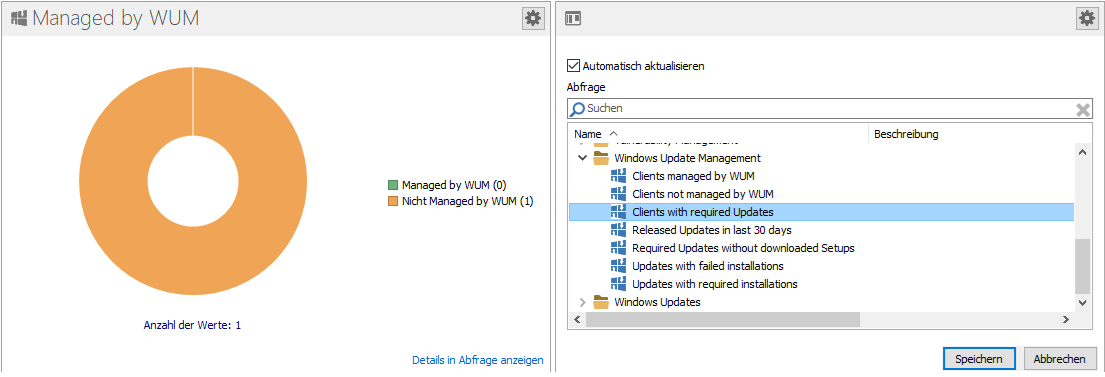
Beispiel einer konfigurierten Abfrage im Windows Update Management Widget
Produkte
Microsoft und die weiteren Hersteller, die Sie innerhalb der Drittanbieterkatalogen finden, bieten eine Vielzahl verschiedener Produkte an, die Sie für Ihre Arbeiten im Windows Update Management auswählen können. Sämtliche Produkte, die Sie konfigurieren und verwenden können, sind der jeweiligen Bezeichnung untergeordnet. Möchten Sie beispielsweise ein bestimmtes Betriebssystem von Windows als Produkt hinzufügen, können Sie dieses direkt in dem Suchfeld eingeben oder aus den Einträgen auswählen.
Wählen Sie alle Produkte aus, für die Sie die Updates bereitstellen möchten. Sämtliche Einträge werden anhand der offiziellen Bezeichnung von Microsoft und den anderen Anbietern bereitgestellt und sind mit der Beschreibung nur in der englischen Sprache verfügbar.
Bei der Auswahl der Produkte sollten Sie nach dem Minimalprinzip gehen: Wählen Sie nur die Produkte aus, die wirklich relevant für Sie sind! Sollten Sie alle Einträge auswählen, würde der acmp Server überlasten und es könnte zu enormen Performance Problemen kommen. Es ist nicht sinnvoll, Drittanbieterkataloge mit einzubeziehen, wenn Sie keine Produkte dieser Anbieter im Einsatz haben. Lesen Sie sich die Auswahl der Produkte sehr genau durch und gleichen Sie die Einträge nach ihrer genauen Bezeichnung ab.
Tipp: Die Produktliste und die jeweiligen Bezeichnungen werden von den Anbietern zur Verfügung gestellt. acmp bezieht die Einträge und fasst sie für Sie zusammen. Vor allem bei den Einträgen von Windows ist es oftmals sinnvoll über die Microsoft Hilfeseite zu überprüfen, ob für die verschiedenen Versionen gleiche, kumulative Updates angeboten werden.
Überprüfen Sie also die ausgewählten Produkte, um beispielsweise auch im Nachhinein den Wartungsaufwand geringer zu halten.
Windows 10 Beispiel: Sie möchten beispielsweise den Clients Updates für das Microsoft Betriebssystem Windows 10 zur Verfügung stellen. Jedoch werden für diesen Suchbegriff fast vierzig Einträge gelistet, da auch die Business-, Anniversary- und Creator-Versionen darunterfallen. Welches ist also das richtige, welches Sie auswählen müssen?
- Wählen Sie Windows 10, version 1903 and later aus, da alle neueren Updates darüber abgedeckt werden. Alle Updates, die älter sind als die Version 1903 würden über Windows 10 laufen. Die Business-, Anniversary- und Creator-Versionen können Sie selektieren, da hier oftmals die Bezeichnung sehr eindeutig ist.
Windows 11 Beispiel: Windows 11 verfügt über eine weitaus geringere Anzahl an möglichen Produkten, die Sie auswählen können. Das liegt zum einen daran, dass das Betriebssystem noch nicht so lange auf dem Markt ist, wie sein Vorgängermodell (Stand: 12/24), aber auch, dass es noch nicht so viele Produkte gibt. Hier können Sie anhand der Editionsbezeichnungen überprüfen, was für Sie in Frage kommt und was nicht (viele Unternehmen setzen Windows 11 Client S nicht ein, daher fallen bereits diese Auswahlmöglichkeiten weg). Achten Sie zusätzlich auf die Versionen, die Ihnen angezeigt werden (22H2, 24H2 etc.). Dadurch können Sie falsche Versionen ebenfalls ausschließen.
Klassifizierungen
Klassifizierungen werden dafür benötigt, um die zuvor ausgewählten Produkte nach den verschiedenen Klassifizierungen zu definieren und zu synchronisieren. Hierdurch werden die Softwareupdates den jeweiligen Arten von Updates zugeordnet und organisiert. Während des Synchronisierungsprozesses werden sämtliche Metadaten der ausgewählten Software für die angegebenen Klassifizierungen synchronisiert. Microsoft unterscheidet dabei zwischen den folgenden Klassifizierungen:
| Klassifizierung | Description | Beschreibung |
| Critical Updates | A broadly released fix for a specific problem addressing a cirtical, non-security related bug. | Gibt einen allgemein veröffentlichten Fix für ein bestimmtes Problem an, der einen kritischen, aber nicht sicherheitsrelevanten Fehler behebt. |
| Definition Updates | A broadly-released and frequent software update containing additions to a products definition database. Definition databases are often used to detect objects with specific attributes, such as malicious code, phinishing Web sites, or junk e-mail. | Stellt ein weit verbreitetes und häufiges Softwareupdate dar, welches Ergänzungen zur Definitionsdatenbank eines Produktes bereithält. Die Definitionsdatenbanken werden oftmals dazu genutzt, um Objekte mit bestimmten Attributen zu erkennen (z.B. Phishing Websites, Junk-E-Mails oder auch bösartigen Code). |
| Drivers | A software component necessary to control or regulate another device. | Treiber sind eine notwendige Softwarekomponente, die benötigt werden, um ein anderes Gerät zu steuern und zu verwalten. |
| Feature Packs | New product functionality that is first distributed outside the context oft a product release, and ususally included in the next full product release. | Hierbei handelt es sich um neue Produktfunktionen, die zunächst außerhalb des Rahmens eines Produktreleases verteilt werden und normalerweise in der nächsten vollständigen Produktveröffentlichung enthalten sind. |
| Security Updates | A broadly released fix for a product-specific security-related vulnerability. Security vulnerabilities are rated based on their severity which is indicated in the Microsoft security bulletin as critical, important, moderate, or low. | Gibt einen allgemein veröffentlichten Fix für eine produktspezifische Sicherheitslücke an, welches als sicherheitsrelevant eingestuft wurde. Sicherheitslücken werden nach ihrem Schweregrad eingestuft (critical, important, moderate oder low), |
| Service Packs | A tested, cumulative set of all hotfixes, security updates, ciritical updates and updates, as well as additional fixes for problems found internally since the release oft he product. Service packs may also contain a limited number of customer-requested design changes or features. | Gibt eine getestete, kumulative Zusammenstellung aller Hotfixes, Sicherheitsupdates, kritischen Updates, Aktualisierungen und zusätzlichen Korrekturen an, die seit der Veröffentlichung des Produkts intern festgestellt wurden. Die Service Packs können dabei auch einige Änderungen an der UI enthalten. |
| Tools | A utility or feature that aids in accomplishing a task or set of tasks | Stellt ein Programm oder Feature dar, mit dem eine oder mehrere Aufgaben ausgeführt werden können. |
| Update Rollups | A tested, cumulative set of hotfixes, security updates, critical updates, and updates packaged together for easy deployment. A rollup generally targets a specific area, such as security, or a component of a product, such as Internet Information Services „IIS“. | Gibt einen getesteten, kumulativen Satz von Hotfixes, Sicherheitsupdates, kritischen Updates und Updates an, die für eine einfache Bereitstellung zusammengestellt sind. Im Allgemeinen betrifft ein Update Rollup einen konkreten Bereich, beispielsweise den Bereich „Sicherheit“ oder eine Komponente des Produkts (z.B. Internet Information Services „IIS“). |
| Updates | A broadly released fix for a specific problem addressing a noncritical, non-security-related bug. | Ein Update ist in der Regel ein allgemein freigegebener Fix für ein konkretes Problem. Updates beheben nicht kritische oder sicherheitsrelevante Fehler. |
| Upgrades | A new product release bringing a device to the next version, containing bug fixes, design changes and new features. | Upgrades geben eine neue Produktversion frei. Hierbei kann ein Gerät auf die nächste Version (z.B. von Windows 10 auf Windows 11) gebracht werden. Diese Updates enthalten u.a. Fehlerbehebungen, Designänderungen und neue Funktionalitäten. |
 Achtung:
 Tipp: Entscheiden Sie sich bewusst dafür, die Treiber mitaufzunehmen, kann der Metadaten-Download länger dauern, viel Speicherplatz in Anspruch nehmen und auch die Datenbankgröße vergrößert sich entsprechend. Machen Sie Ihre Entscheidung daran fest, was für eine Hardware bei Ihnen im Einsatz ist und ob sich die Option wirklich lohnt. Haben Sie ausschließlich Hardware (Computer, Notebooks) von anderen Firmen (z.B. Lenovo, Dell oder HP) im Einsatz, können Sie diese über die Drittanbieterkataloge auswählen und einbeziehen.
Jobs und Aufgaben
Damit das Windows Update Management reibungslos funktionieren kann, bedarf es einiger Serverjobs und -aufgaben. Die Jobs richten sich dabei unter anderem an die Auslastung des Servers, die durch konfigurierte Intervalle bestimmt werden. Sie können sowohl den Agentenplaner-Job als auch die Serveraufgaben jeweils eine Startbedingung zuteilen, die Sie Ihrer Umgebung anpassen können. Die Jobs und Aufgaben erfolgen in Intervallen und sequenziell nacheinander. Die Abfolge können Sie in den Monitoren (u.a. Job-, Client- und Servermonitor) überprüfen.
Nachfolgend eine kurze Auflistung der Jobs und welche Aufgaben sie für das Windows Update Management erfüllen:
Agentenplaner (Client Management > Agentenplaner)
| Agentenplaner | Beschreibung | Empfohlene Startbedingung |
| Windows Updates Scanner | Der Windows Updates Scanner scannt die Clients, ob sie ein Update als benötigt/installiert gemeldet haben. Der Scanner wird auch ausgeführt, wenn eine Update Collection angestoßen wird. | Starte täglich |
Geplante Serveraufgaben (System > Einstellungen > acmp Server > Geplante Serveraufgaben)
| Serveraufgabe | Beschreibung | Empfohlene Startbedingung |
| Windows Update Management Metadaten herunterladen | Lädt die Metainformationen über die Windows Updates herunter. | Starte täglich |
| Windows Update Management Setup herunterladen | Lädt die Setup-Dateien für die ausgewählten Windows Updates herunter. | Starte täglich |
| Neuberechnung Windows Updates für verwaltete Clients | Berechnet die dynamischen Verknüpfungen von den Clients neu, die mit acmp Windows Update Management verwaltet werden. | Starte stündlich |
| Windows Update Management bereinigen | Gibt den Festplattenspeicher frei, der von den nicht benötigten Windows Updates belegt ist. | Starte täglich |
| Bereinigung der Windows Update Logs | Bereinigt die Logs, die älter als 30 Tage sind. | Starte alle fünf Stunden |
Nutzung des System Jobs "Windows Update Cache zurücksetzen"
Über eine Job Collection oder einen Jobpush über die Abfrage können Sie den System Job „Windows Update Cache zurücksetzen“ verwenden, der auf dem Agenten ausgeführt wird. Dieser Job setzt den Windows Update Agenten am Client zurück. Dabei werden die Windows Update Dienste gestoppt (Wuauserv, Bits und Cryptsvc), der Software Distribution Ordner im Windows Verzeichnis geleert und anschließend wird der Dienst erneut gestartet. Sollte es zur Laufzeit Probleme mit dem Windows Update Agenten geben, können Sie mit dem System Job den Agenten manuell zurücksetzen.
Info: Im Falle eines Fehlers können Sie sich das Ergebnis im Job Monitor anzeigen lassen.
Fügen Sie bei Bedarf den System Job ein.
Sync-Profile und verteilte File Repositories
Mit den Sync-Profilen können Sie innerhalb des Windows Update Managements angeben, welche Updates zu welchen File Repositories synchronisiert werden sollen. Rufen Sie die Sync-Profile aus dem Tab Updates auf ( ). Es öffnet sich ein neues Fenster, in dem Sie bereits standardmäßig ein Profil vorfinden ("Alle Windows Updates": Der Filter bezieht dabei alle bereits abonnierten Updates mit ein). Dieses Sync-Profil hat die Windows Updates als Inhalt und beinhaltet die Filter aller beliebiger Produkte (alle jetzigen und zukünftigen), die automatisch synchronisiert werden. Das heißt, dass auch künftige Updates eines bestimmten Produkts einbezogen werden. Diese Option ermöglicht es Ihnen automatisch alle selektierten Produkte einzubeziehen, ohne manuelle Änderungen daran vorzunehmen.
Sollten Sie dem verteilten File Repository kein Sync-Profil zugewiesen haben, erscheint eine Fehlermeldung.
Sync-Profil hinzufügen
Um ein neues Sync-Profil hinzuzufügen, klicken Sie auf den gleichnamigen Button in der Leiste. Es öffnet sich ein mehrseitiger Wizard. Fügen Sie auf der ersten Seite zunächst einen Namen für das Sync-Profil unter "Allgemein" ein und klicken Sie auf Weiter >.
Mithilfe des Filters können Sie nun Elemente mit dem Sync-Profil verknüpfen. Wählen Sie nun die Produkte, Klassifizierungen und Sprachen aus, die in dem Profil mit einbezogen werden sollen. Haken Sie dafür die Checkbox "Dynamischen Filter verwenden" an, um die nachfolgenden Konfigurationen verwenden zu können. Sie können jeweils zwischen den beiden Optionen „Alle Updates“ oder „Nur Updates ausgewählter Produkte, Klassifizierungen und/oder Sprachen“ auswählen. Bei der ersten Option werden alle Elemente synchronisiert bei der zweiten Option müssen Sie die Auswahl manuell treffen.
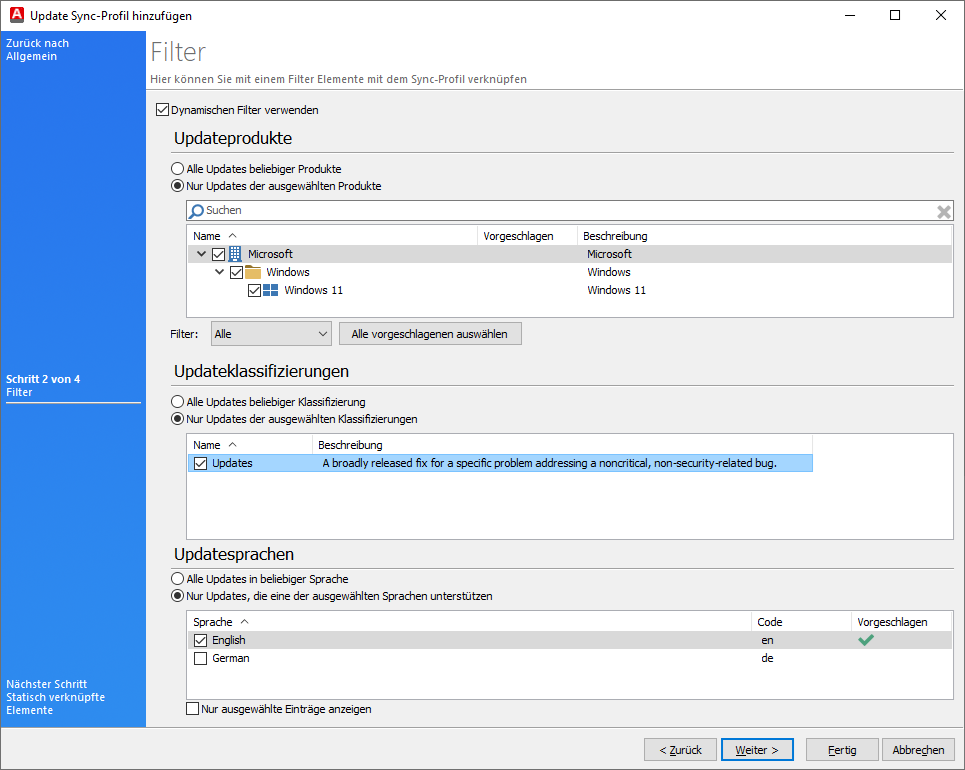
Filter für die Inhalte das Sync-Profil bestimmen
Klicken Sie nach Ihrer Auswahl auf Weiter >, um fortzufahren.
Möchten Sie eine statische Verknüpfung der Elemente vornehmen, können Sie dies auf der Seite festlegen. Auf der letzten Seite können Sie nun das File Repository auswählen, das für das Sync-Profil genutzt werden soll.
Beenden Sie Ihre Arbeiten und klicken Sie auf Fertig. Das neu erstellte Sync-Profil erscheint nun in der Liste. In dem Sync-Profil Menü können Sie sich nun die verfügbaren Profile anschauen und sehen dort z.B. auch direkt, welcher Filter gesetzt und welche Einträge verknüpft wurden und was für ein File Repository hinterlegt ist.
Sollten Sie im Nachhinein Änderungen an einem Profil vornehmen wollen, können Sie dies über  Bearbeiten machen. Über den Button
  Löschen können Sie das Profil dauerhaft entfernen.
Windows Update Management CI Anpassungen (Neustart-Dialog)
Ähnlich wie an anderen Stellen im ACMP, können Sie als Administrator auch den Neustart-Dialog des Windows Update Managements individuell an Ihre Corporate Identity anpassen. Hierbei lassen sich sowohl das Logo als auch der Banner für den Dialog austauschen.
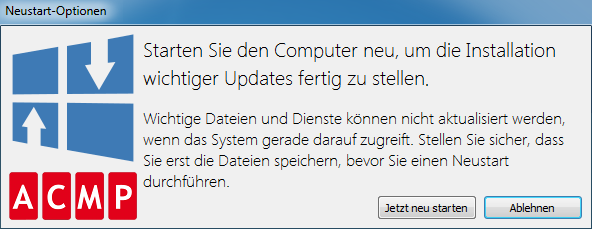
Neustart-Dialog
Um diese Änderungen vorzunehmen, wechseln Sie zunächst in das Installationsverzeichnis ACMPClient (z.B. C:\Program Files (x86)\ACMPClient). Kopieren Sie nun die Grafiken für das Logo und optional für den Banner in das Verzeichnis. Beachten Sie dazu die folgenden Angaben zu den Grafiken:
| Dateiname | Maße | Originalgrafik | Beschreibung |
| RebootOptionDialogLogo.png | 128x128 |  | Hiermit ändern Sie das Logo und können beispielsweise Ihr eigenes Firmenlogo einbinden. Der Vorteil dieses Logos ist es, dass sofort ersichtlich wird, dass es sich hierbei um das Einspielen neuer Windows Updates handelt. |
| RebootOptionDialogBanner.png | 128x49 |  | Im Standard-Banner steht ACMP. Sie können hier z.B. den eigenen Unternehmensnamen eintragen. |
Konfiguration der Office 365 Apps Installation außerhalb von ACMP
Als Voraussetzung zur Verteilung von Updates über das Windows Update Management für Office 365 gilt, dass die Apps bereits im Vorfeld installiert wurden. Dies ist Grundvoraussetzung für den Administrator, damit auch eine Konfiguration außerhalb von acmp möglich ist.
Mithilfe des Microsoft Office-Anpassungstools haben Sie die Möglichkeit, die gewünschte Konfiguration für den Download und die Installation von Office 365 durchzuführen. Hierzu legen Sie im Vorfeld die Bereitstellungseinstellungen fest (z.B. Import oder Export) und definieren, welche Produkte, Versionen und Apps bereitgestellt werden sollen. Sie werden schrittweise durch die Anwendung geführt und können dort individuelle Einstellungen festlegen. Der Download und die Installation erfolgen anschließend über das Tool.
Tipp: Über die offizielle Microsoft Hilfeseite können Sie mehr Informationen zu dem Bereitstellungstool bzw. zu den Konfigurationsoptionen nachlesen.
Wahlweise können Sie das acmp Client Command "Microsoft Office 365 und 2019" installieren, welches ebenfalls die Office-Bereitstellungstools nutzt.
In der Regel erfolgt im ersten Schritt bei Microsoft auch die Konfiguration sogenannter Updatekanäle. Über den Kanal veröffentlicht Microsoft regelmäßig neue und/oder aktualisierte Features für die Office Apps. Der Administrator kann dabei selbst entscheiden, welche Art von Updatekanal und in welchem Aktualisierungsturnus gewählt werden soll. Das Windows Update Management bezieht die nötigen Updates genau über diesen Kanal.
Besonderheiten zu den Display Fields im Windows Update Management
Display Field: Windows Update Management > Updates > Deinstallation möglich
Mithilfe des Display Fields „Deinstallation möglich“ können Sie sich innerhalb einer Abfrage (Abfrageverwaltung > Abfrage erstellen > Basis der Abfrage „Windows Update Management“) anzeigen lassen, ob eine Deinstallation bei den verfügbaren Updates möglich ist.
Display Field: Zusammenfassung der Display Fields zum Installations- und Deinstallationsverhalten (Windows Update Management)
Windows Updates haben u.a. die Eigenschaft, die ein mögliches Neustartverhalten beschreiben. Hierdurch kann der Benutzer z.B. direkt sehen, ob eine Deinstallation oder Installation Benutzereingaben erfordern oder eine Netzwerkverbindung. Diese Angaben lassen sich aus der Detailansicht eines ausgewählten Updates im Windows Update Management auslesen. Über die nachfolgenden Felder können Sie eine Abfrage gezielt so erstellen, um die Informationen auszulesen. Verfügbar sind dafür folgende Display Fields:
Installation:
- Installationsauswirkung
- Installation Neustartverhalten
- Installation kann Benutzereingaben anfordern
- Installation erfordert Netzwerkverbindung
Deinstallation:
- Deinstallationsauswirkung
- Deinstallation Neustartverhalten
- Deinstallation kann Benutzereingaben anfordern
- Deinstallation erfordert Netzwerkverbindung
Display Field: Update Dateien
Ein Update beinhaltet in der Regel mehrere Dateien und zu den wichtigsten Eigenschaften dieser Dateien gibt es vier Display Fields, die sie nutzen können, um die Informationen auszulesen. Dazu zählen der Dateiname, die Dateigröße, das Feld „Ist Heruntergeladen“, sowie der „letzte Download http Status Code“.
Info: Sobald Sie ein Update herunterladen, wird das Ergebnis in dem Display Field „Letzter Download http Status Code“ erfasst und aufgelistet. Sollte es z.B. hier zu einer Fehlermeldung kommen, können Sie diese dort über direkt auslesen.
Display Field: Gesamte Dateigröße
Das Display Field zeigt die gesamte Dateigröße eines Updates an.
Info: Beachten Sie folgende Hinweise zu der Eigenschaft „Gesamte Dateigröße“:
- Bei der Berechnung der Größe eines Updates werden alle zu dem Update gehörigen Dateien einbezogen.
- Da eine Datei zu mehreren Updates gehören kann, kann die Gesamtsumme der Dateigröße zu allen Updates größer sein, als der tatsächlich verbrauchte Speicherplatz im File Repository.