



Driver
To execute a Rollout on all clients, you may need additional drivers for the network card or storage media. You can create these here and use them later during the Rollout.
In this section of the acmp Console, you can get a quick overview of the added drivers, group them into driver packages, and view the driver details.
 Note:
Note: 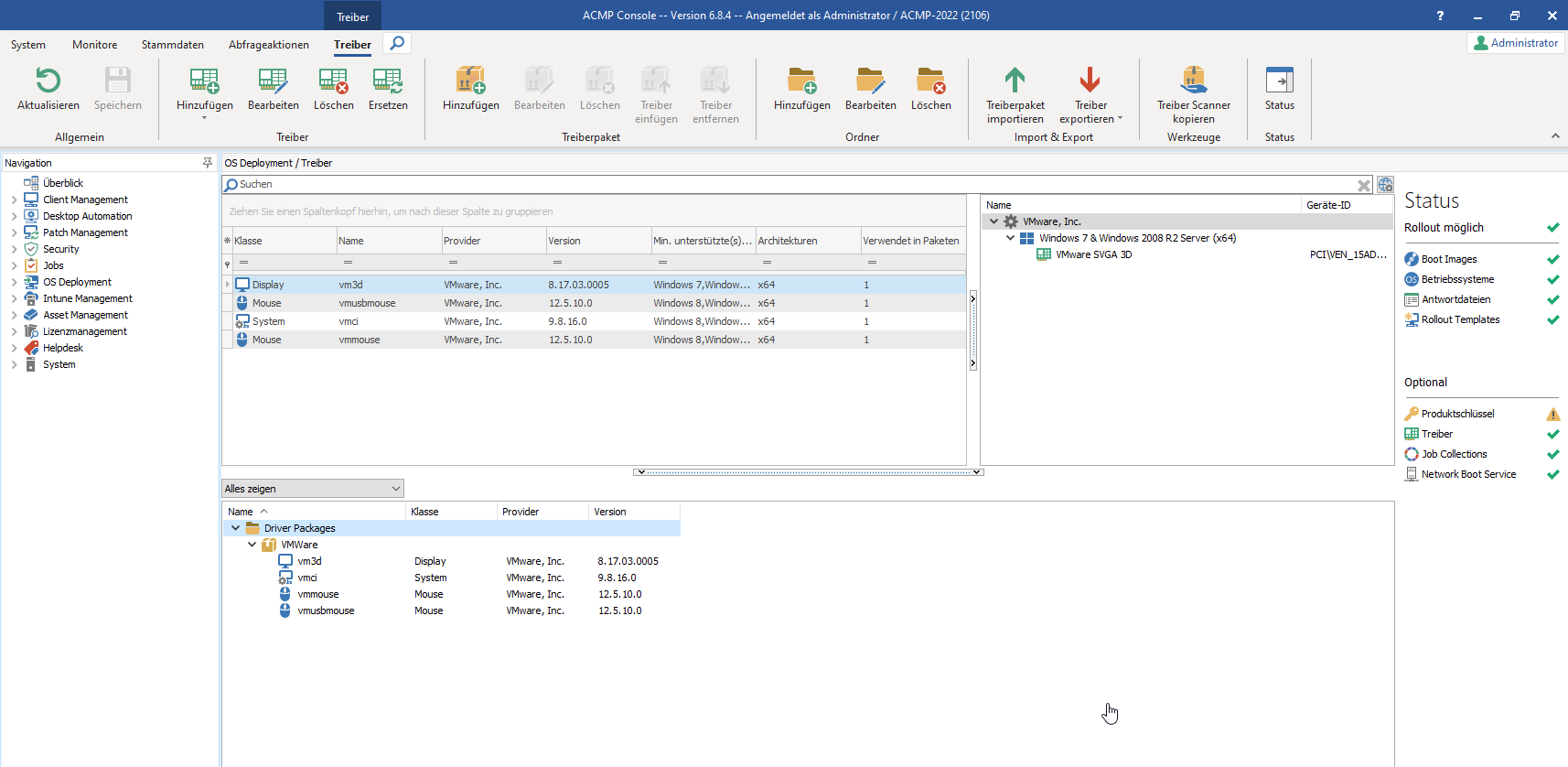
Add driver
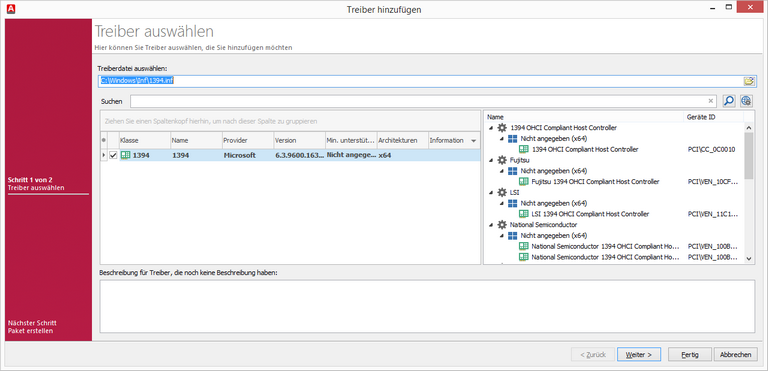
First, select the file you want to add. To do this, enter the file path or browse your system. You can specify either an entire folder, an *.inf file, or an export file that you created using the Driver Scanner.
The file will be read, and its contents will be displayed. All drivers not yet present in the acmp Console will be highlighted.
Duplicate or empty driver files are not highlighted. In the driver details, you can group by individual column headers and set filters. In the lower section, you can insert an optional description. If you want to create a driver package directly with the added driver, click Next; otherwise, click Done.
Treiber importieren
Add driver folder
To add a full directory, first select the directory. To do this, enter the path to the directory or browse your system.
The existing *.inf files will be read, and their contents will be displayed. You can group items by individual column headers and apply filters. If you do not want to add one or more drivers, you can deselect them individually.
In the lower field, you can insert a description for the drivers. When adding a driver folder, the “Create Package” option on the second page is automatically enabled to create a driver package from the driver folder.
Therefore, click Next to assign a name or to disable the option.
Driver package
For better overview, you can group added drivers into driver packages and use folders to reflect your company's structure.
Create a driver package
There are two ways to create a driver package. You can create a new driver package yourself by clicking “Add Driver Package,” or you can import a previously exported driver package.
If you want to create a driver package from added drivers or added driver folders, you must select the “Create Package” checkbox on the following page after selecting the file or folder. This also enables the “Include unselected duplicates in package” option. This allows you to store duplicate drivers once in the acmp Console but use them in different driver packages. If you do not want duplicates to be included in the new driver package, disable the checkbox. To create the package, enter a name and a description. After clicking “Finish,” the drivers are added to the acmp Console and a driver package is created.
Add Drivers to Driver Package
If you added the driver package manually, there will be no drivers initially. First, select the desired drivers (you can select multiple drivers by holding down the CTRL key). Then select the driver package to which you want to add the selected drivers.
Clicking Insert Drivers will insert the drivers into the driver package.
Alternatively, you can also drag and drop the selected drivers onto the driver package.
Import & Export
| Opens a wizard for importing a driver package |
| Opens a wizard for exporting a driver or a driver package |


Import Driver Package
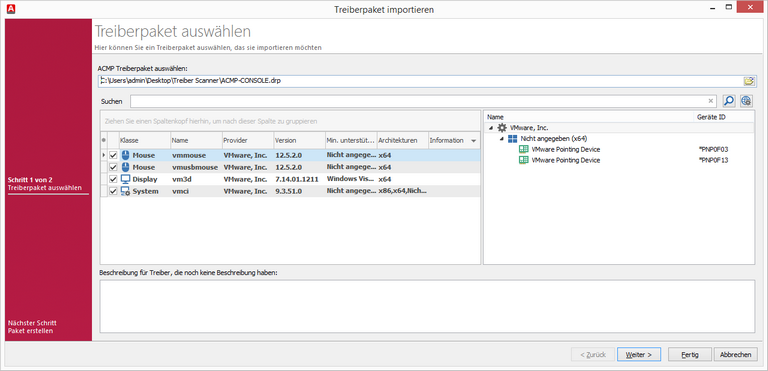
First, select the *.drp file you want to import. The file will be read, and the existing drivers and driver properties will be displayed.
Optionally, you can enter a description.
Import driver package
After clicking Next>, you can customize the name of the driver package to be created. The system will suggest the name of the file currently being imported.
After you click Finish, the selected drivers will be added to the acmp Console and a driver package will be created.
Export driver
To export individual drivers, select the Export Drivers menu item.
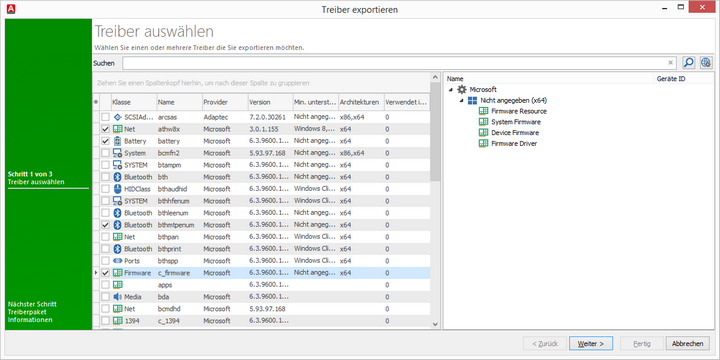
A wizard will open, where you first select the drivers you want to export.
Select drivers for export
In the following steps, first assign a name to the driver package to which the selected drivers are to be exported, and then select the output directory.
Export driver package
In addition to exporting individual drivers, you can also export full driver packages.
To do this, select the Export Driver Package menu item. Select the driver package or packages you want to export, and then specify the output directory in the next step.
A separate file with the name of each selected driver package will be created in the output directory.
Tools (Driver Scanner)
Selecting the Copy Driver Scanner menu item opens the Bin\ACMPDriverScanner directory in the acmp Console installation directory. This directory contains four files.
Run “ACMPDriverScanner.exe” to scan all drivers on the current system.
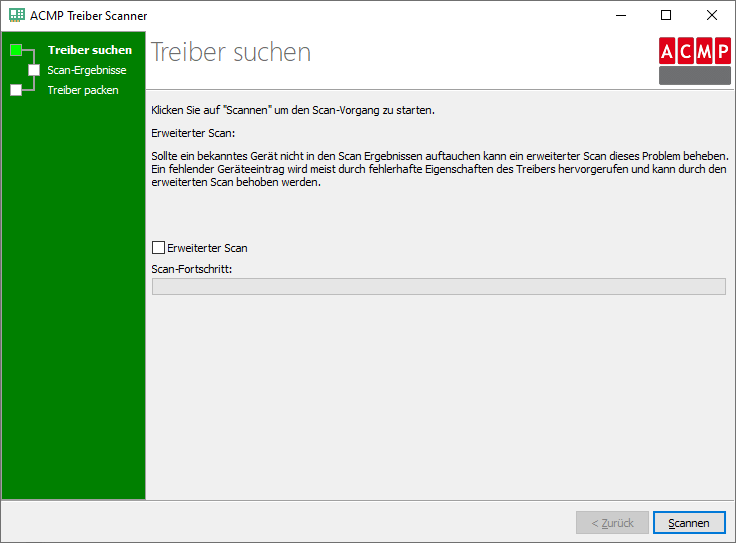
acmp Driver Scanner
Enable the Advanced Scan option if a device you recognize does not appear in the scan results. A missing device entry is usually caused by missing driver properties and can be resolved using the advanced scan.
Click Scan to start the driver scan. The scan results will be listed on the next page. You can customize the scope of the results by displaying hidden devices, Windows, and Microsoft drivers. These are hidden by default.
Select the drivers you want to include in the driver package and click Next>.
On the next page, specify the storage location for the driver package. You can use the created driver package for import.