



Ticket templates
Ticket templates help you respond quickly and flexibly to recurring problems. These templates are created in a similar way to a ticket and can be used as needed. You can access and create ticket templates via the Ticket Management tab.
When creating a new template, you can enter some information in advance. Any missing details - such as information you couldn’t have known before creating the template - must be added later, as soon as a ticket is created from the template.
In the templates section, you can manage either the templates or the Hot Topics. If a ticket is created from a Hot Topic template, it is stored directly in the system and can no longer be edited. This allows you, for example, to record standard tasks in the system. Direct changes to a Hot Topic ticket can only be made if you reopen the ticket.
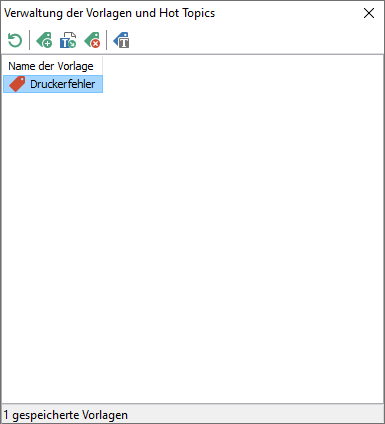
Template Management
Templates can be created, viewed, and deleted using the Template Manager. You can access the Template Manager by clicking the Templates icon in Ticket Management under the Ticket Management tab. Hot Topic templates are indicated by a small flame on the icon.
Working with Templates
Creating Templates
To create a template, open the Administration tab in Ticket Management and click Template in the ribbon bar. An input form similar to that of a ticket will open.
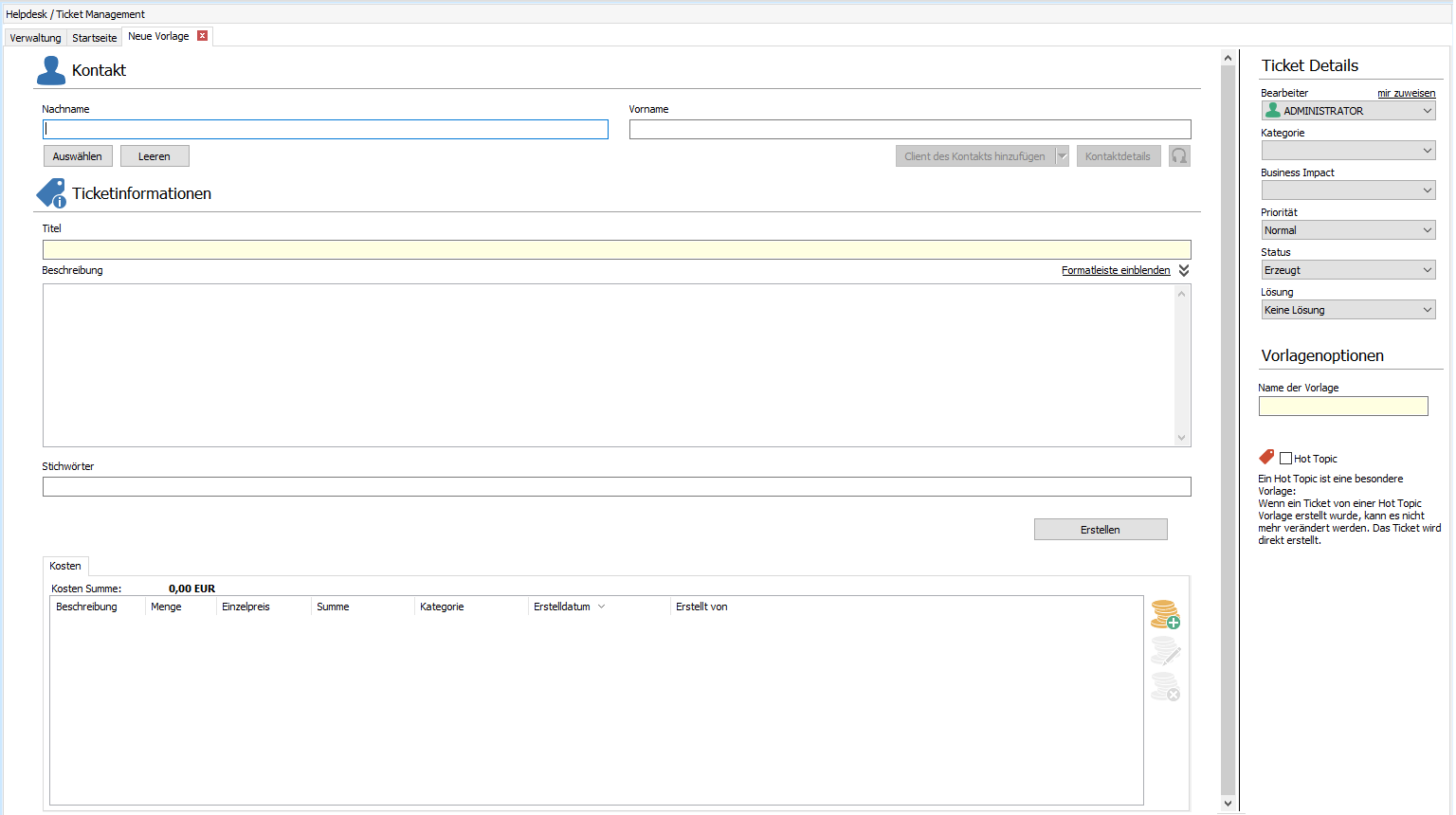
Creating a template
Here you can enter some information for a future ticket. The title, description, and template name are important. If you enable the “Hot Topic” option, a ticket will be created directly from the template without allowing you to change or add any information. For information on the individual fields, see the chapter Working with Tickets.
Creating a Ticket from a Template
There are two ways to create a ticket from a template.
1. The first option is to create a ticket from a template using the Template Manager. To do this, open the Template Manager via the Templates field in the Quick Access Toolbar in Ticket Management. Enter all the required information and save the template.
2. The second option is to create a ticket from a template via Ticket Management. To do this, click Add on the ribbon bar while in the Administration tab. You can either click Add directly - which immediately opens the window for creating a new ticket - or click the arrow below it to open a list of all available templates.
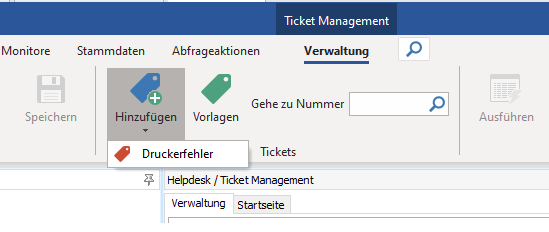
Create a Ticket from a Template
Click on the appropriate template here to create a ticket. If you created a new template just a moment ago, it may not yet appear in the list. In that case, click the Refresh button.
Once a template has been selected, a new ticket dialog box will open where you can enter the remaining information. For a “Hot Topic,” a ticket dialog box will also open, but the ticket is saved directly to the database, so no further changes can be made.