



Manage Client Commands
To edit a Client Command, the current version must have the “Created” status. If the current version has the “Testing” or ‘Synchronizing’ status, it must be reset to the “Created” status before it can be edited. Then select the Client Command and click one of the icons in the quick access toolbar. If the Client Command is not in the “Create” phase, it will open in read-only mode.
Options
The following options are available in the ribbon bar:
| Add a new Client Command using the Client Command Editor. |
| Edit a Client Command. |
| Delete the selected Client Command. |
| Displays the individual steps of the Client Command. This view is read-only. |
| Create a new version of the selected Client Command. This moves the Client Command to the Create phase. |
| Displays the version history of the selected Client Command. |


 Note:
Note: 


Script View
The Script View is available in the “Create” phase via an icon in the quick-select bar for Client Commands. Additionally, the Script View for a specific Client Command version can be accessed from the version history.
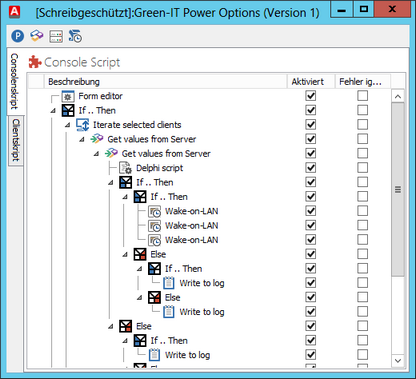
Script View
When the Script View is opened for a Client Command or a version, a window displays the structure of the Client Command or version. The display is based on how the Client Command or version appears in the Client Command Editor. The individual commands are shown in their execution structure, with a distinction made between client and console scripts.