



Commandlist
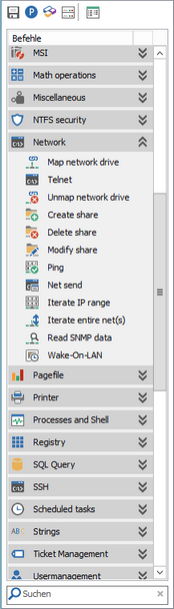
Die Commandlist beinhaltet alle zur Verfügung stehenden Funktionen zur Erstellung eines Client Commands. Diese sind generell in Kategorien eingeteilt, lassen sich aber auch als Liste anzeigen. Um eine Funktion zu verwenden, ziehen Sie diese einfach in das Skript.
| Speichert das aktuellen Client Command. |
| Öffnet den Eigenschaften-Dialog. |
| Öffnet den Dialog zum Bearbeiten von Variablen. |
| Öffnet das File Repository. |
| Schaltet die Commandlist zwischen Listen- und Kategorieansicht um. |


In der Commandlist finden Sie eine Schnellwahlleiste mit den wichtigsten Optionen sowie alle zur Verfügung stehenden Commands, welche Sie zum Erstellen eines Client Command nutzen können. Sobald Sie ein Command nutzen möchten, ziehen Sie dieses per Drag & Drop an die entsprechende Stelle im Skript–Bereich. Anschließend erscheint ein Dialog, über welchen Sie die genaue Funktion des Commands steuern können. In einer Spalte am linken Dialogrand werden verschiedene Symbole eingeblendet. Sollte ein Symbol ausgeblendet sein, ist diese Funktion für den Befehl nicht verfügbar und erlaubt beispielsweise keine untergeordneten Befehle oder lässt keine mehrfachen Durchläufe zu (letzteres gilt z.B. für das Loop Command): Kompabilität ( |
|
Der Tab Allgemein ist für (fast) alle Commands identisch. Hier kann der Name des Commands sowie seine Beschreibung dem Client Command angepasst werden. Weiterhin gibt es zusätzlich Optionen, welche für das Ausführen des Commands innerhalb des Client Commands gesetzt werden können. Im Abschnitt Optionen kann angegeben werden ob das Command Aktiviert ist - also ausgeführt wird - und ob Fehler bei der Ausführung ignoriert werden sollen. Zusätzlich kann angegeben werden, wie viele Millisekunden nach der Ausführung des Commands bis zur Ausführung des nächsten Commands gewartet werden soll. In den Ausführungsoptionen kann dann noch der Kontext und die ausführende Einheit angegeben werden. Unter Kontext kann angegeben werden, ob das Command Immer ausgeführt werden soll, oder ob es Benutzerbezogen bzw. Maschinenbezogen ausgeführt wird. Eine Benutzerbezogene Ausführung des Commands ist dann sinnvoll, wenn z.B. eine Software speziell für einen Benutzer und nicht für das gesamte System installiert wird bzw. auf Umgebungsvariablen des Benutzers zurückgegriffen werden muss. Eine Maschinenbezogene Ausführung des Commands ist dann sinnvoll, wenn z.B. eine Software für das gesamte System mit allen Benutzern (Updates, Patches etc.) installiert wird. | 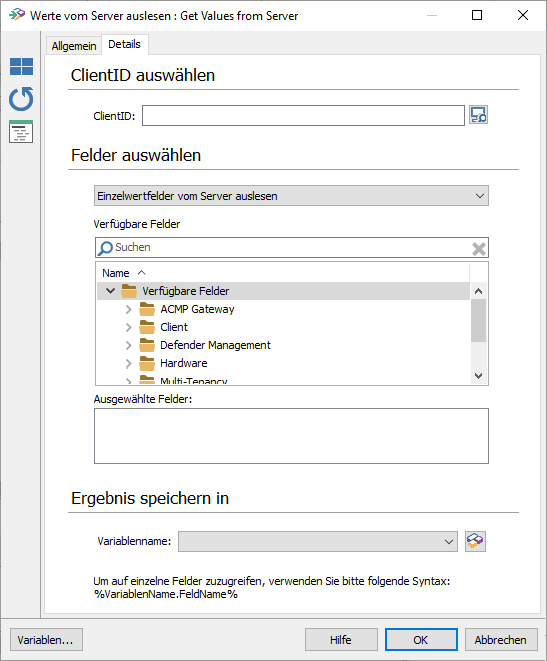 Allgemeine Command Informationen |
 )
) )
) )
)
 Hinweis:
 Dabei gibt es dann noch die Unterscheidung, ob das Command als Dienst oder als Benutzer auf dem Client/Server ausgeführt wird. Commands sollten als Dienst ausgeführt werden, wenn z.B. für eine Installation Administratorrechte benötigt werden oder systemweite Konfigurationen vorgenommen werden (Umgebungsvariable anpassen, Größe der Auslagerungsdatei ändern etc.). Als Benutzer ausgeführte Commands dienen dazu, Umgebungsvariablen des Benutzers zugänglich zu machen und ihm die Rechte an einem z.B. neu angelegten Ordner zuzuordnen. Ebenso ist diese Option nötig, sobald der Benutzer mit dem Command interagieren muss z.B. bei Installationsdialog, Fortschrittsanzeigen oder ähnlichem.
Auf die speziellen Einstellungen der einzelnen Commands wird in den folgenden Kapiteln eingegangen. Dabei finden sich in diesen Kapiteln die Commands in der Reihenfolge wieder, wie sie den Kategorien in der Commandlist zugeordnet sind.
Verwendung kurzer Benutzernamen
Bei der Verwendung von Benutzernamen, die nur aus 2 Zeichen bestehen, kann es zu Fehlern kommen, die wir im folgenden erläutern.
In Windows Betriebssystemen gibt es eine Funktion, die entsprechende Benutzernamen zur SID von Systembenutzern auflöst. Hierdurch kann es bei der Verwendung von Client Command Bausteinen zu Problemen kommen.
Betroffene Client Commands
Die folgenden Client Commands können für 2-zeichige Benutzernamen nicht verwendet werden:
Conditions
Usermanagement
Assign local user to local groups
Remove priviledge from user/group
Betroffene Benutzernamen
Die folgenden Benutzernamen werden zu Systembenutzern aufgelöst:
| Betroffene Benutzernamen / SID | wird aufgelöst zu |
| AA | Access control assistance operators |
| AC | All applications running in an app package context |
| AN | Anonymous logon |
| AO | Account operator |
| AP | Protected Users |
| AU | Authenticated users |
| BA | Built-In administrator |
| BG | Built-In guests |
| BO | Backup operator |
| BU | Built-In users |
| CA | Certificate publishers |
| CD | Users who can connect to certification authorities using Distributed Component Object Model (DCOM). |
| CG | Creator group |
| CN | Cloneable domain controllers. |
| CO | Creator owner |
| CY | Crypto operators |
| DA | Domain administrator |
| DC | Domain computers |
| DD | Domain controllers |
| DG | Domain guests |
| DU | Domain users |
| EA | Enterprise administrator |
| ED | Enterprise domain controllers |
| EK | Enterprise domain controllers |
| ER | Event log readers |
| ES | Endpoint servers |
| HA | Hyper-V administrators |
| HI | High integrity level |
| HO | Group members may operate hardware from user mode |
| IS | Anonymous Internet users |
| IU | Interactively logged-on user |
| KA | Domain key admins |
| LA | Local administrator |
| LG | Local guest |
| LS | Local service account |
| LU | Perfomance Log users |
| LW | Low integrity level |
| ME | Medium integrity level |
| MP | Medium Plus integrity level |
| MU | Performance Monitor users |
| NO | Network configuration operator |
| NS | Network service account |
| NU | Network logon user |
| OW | Owner Rights SID |
| PA | Group Policy administrator |
| PO | Printer operator |
| PS | Principal self |
| PU | Power users |
| RA | RDS remote access servers |
| RC | Restricted code |
| RD | Terminal server users |
| RE | Replicator |
| RM | RMS Service |
| RO | Enterprise Read-only domain controllers |
| RS | RAS servers group |
| RU | Alias to grant permissions to accounts that use applications compatible with operating systems previous to Windows 2000 |
| SA | Schema administrator |
| SH | Users allowed to connect with OpenSSH |
| SI | System integrity level |
| SO | Server operator |
| SS | Authentication service asserted |
| SU | Service logon user |
| SY | Local system |
| UD | User-mode driver |
| WD | Everyone |
| WR | Write Restriced code |