



ACMP Kiosk
To open the ACMP Kiosk, navigate to Client Management > ACMP Kiosk in the ACMP Console.

The ACMP Kiosk
The first time you access the ACMP Kiosk, a note will be displayed indicating that the Client Command Launcher is still activated. This allows you to configure and test all settings first before your users can view the ACMP Kiosk. The Client Command Launcher remains activated until that point.
The ACMP Kiosk on the Client
After you have activated the display of the ACMP Kiosk tray icon via settings and restarted the agent, you can launch the ACMP Kiosk on your Clients. You can customize the appearance of the window to suit your needs.
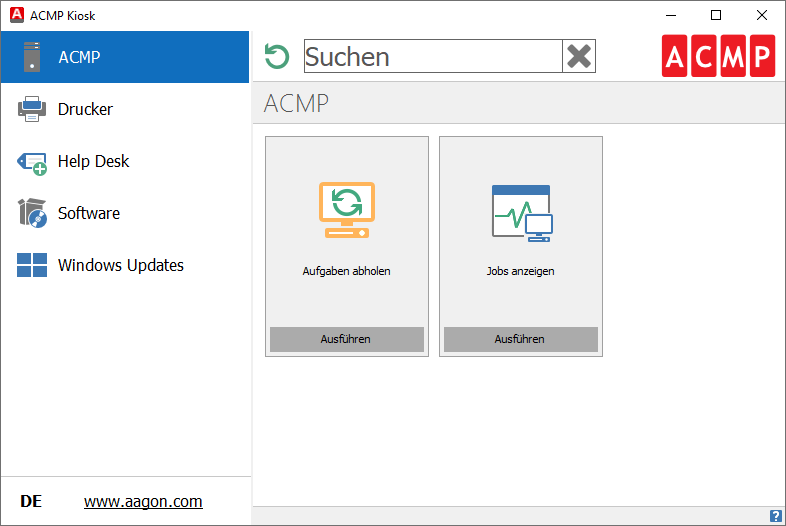
The ACMP Kiosk on the Client
The navigation pane is displayed on the left side of the window. The folders you have created are listed here, depending on their configured visibility.
In the upper section of the right side of the window, a search bar is displayed. Here, you can find existing items. This is a full-text search, so you can also find terms within the descriptions.
When you select an item in the navigation pane, the items it contains are displayed, depending on their configured visibility settings.
Using the ACMP Kiosk
When you make items available to your users in the ACMP Kiosk, they can initiate execution on their own.
To do this, click on the desired Managed Software Package, Client Command, Job Collection, system job, or Windows Update Collection.
Job Collections are queued for execution on the client, while Managed Software packages and Client Commands also display the configured parameters. If editing the parameters was allowed when the item was created, you can customize the parameters individually. This means that for each parameter, you can specify whether it is invisible, read-only, or editable when the item is executed on the client.
 Note:
Note: Based on the individual configuration, the Managed Software package determines on its own whether to perform a new installation or an Update of the software. We provide the respective options directly within the Managed Software package.