



Agent and console startup
In rare cases, after upgrading to version 6.5, the ACMP agent or console may fail to start.
The following section lists the possible causes of the failure and provides suggestions for troubleshooting. You will then learn what solutions are available for the error so that the Agent or Console can start again without errors.
Error: The console or agent fails to start after upgrading to ACMP version 6.5.
Initial situation
ACMP version 6.5.0 now includes certificate validation. This means that systems with outdated certificates will prevent the ACMP Console or ACMP Agent from starting after updating to 6.5.0. If this is the case for you, the reasons may be an outdated root certificate, an untrusted root certificate classification, or an outdated cross-signature.
If you have experienced one of these problems, it may be because of a group policy that prevents automatic certificate updates.
Here we explain how to check in advance whether the startup problem is due to invalid certificates and how to change the group policy that prevents automatic certificate updates, if necessary. We also show you a manual solution that allows you to export certificates from a device with valid certificates and import them to the affected system.
 Note:
Note: Follow these steps:
Solution 1: Check the certificates to make sure they are valid.
1. Go to the ACMP Client folder, which is located in the Program Files (x86) folder, and right-click on ACMPClientService.exe to open its properties.
2. Then, switch to the Digital Signatures tab.
3. Double-click on the certificate. If the certificate is valid, you'll see a message in the General section.
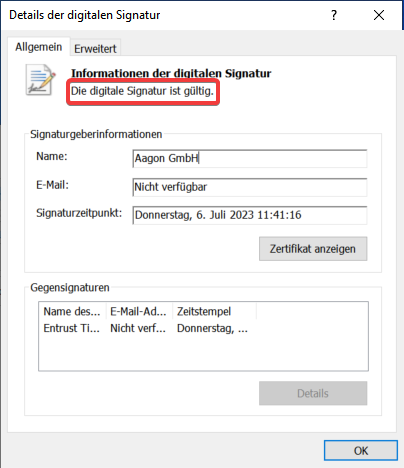
Prüfung des Zertifikatsstatus
If the certificate is displayed as invalid, this is often due to an invalid root certificate in the certification path. You should also check the status of the root certificate.
1. Follow steps 1-3 above.
2. In the Signature Information area, click View Certificate.
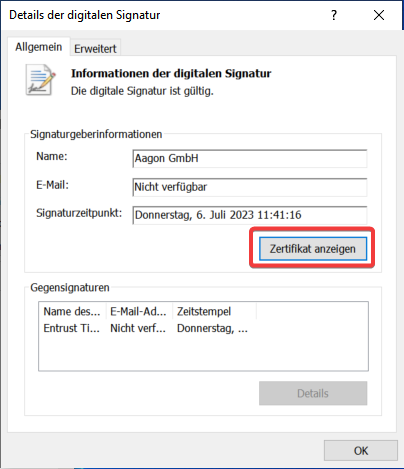
Root-Zertifikat anzeigen lassen
3. In the new window, click on the Certification Path tab.
4. You can now see the whole certification path. This includes the origin of the root certificate and the status of the certificate.
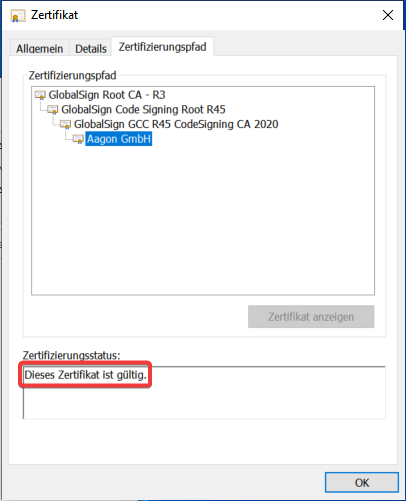
Den Status des Root-Zertifikats prüfen
Also, the counter-signature must be valid.
1. Follow steps 1-3 from the previous section.
2. Double-click on the certificate under Counter-signatures.
3. In the Signature Information area, click on Show Certificate.
4. In the new window that opens, click on the Certification path tab.
5. You can now see the whole certification path of the counter-signature, including its origin and status.
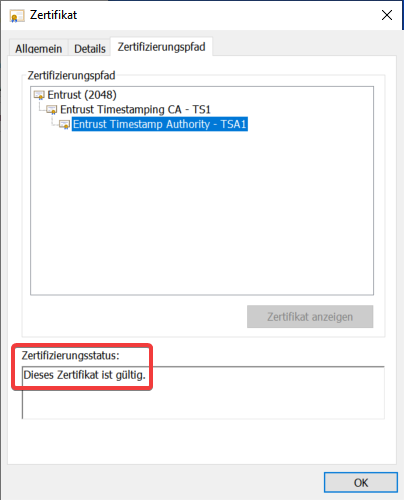
Den Status der Gegensignatur prüfen
These certificate checks are related to ACMPClientService.exe. To perform a complete check, you must repeat the process for the following files, which are also located in the ACMP Client directory: "C:\Program Files (x86)\ACMP Client\".
| File |
|---|
| Sectigo - Aagon.Core.AgentUninstall.dll |
| Entrust (2048) - Aagon.CustomImages.ClientModule.dll |
| GlobalSign Root CA - R6 - Aagon.Defender.Management.ClientModule.dll |
| Sectigo (AAA) - libcryptop-1_1.dll |
| Sectigo - libcryptop-1_1.dll |
If all these certificates are valid, then the startup problem with the console or agent has other causes.
However, if these certificates are invalid, you have two options.
Solution 2: Check the registry key and change the group policy if necessary.
In this problem case, the following registry key is usually set:
Go to "HKEY_LOCAL_MACHINE\Software\Policies\Microsoft\SystemCertificates\AuthRoot" and change the setting for "DisableRootAutoUpdate" to "1."
2. Navigieren Sie in den Gruppenrichtlinien-Editor zu Administrative Vorlagen > System > Internetkommunikationsverwaltung > Internetkommunikationseinstellungen.
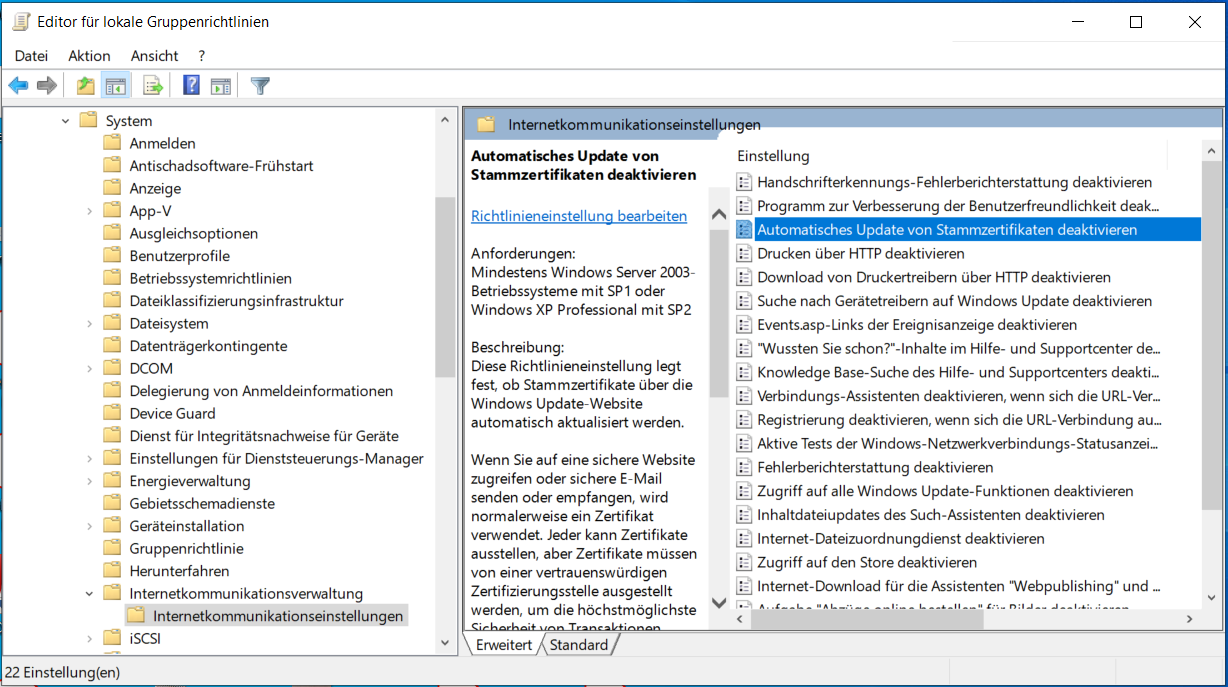
Editor für die Gruppenrichtlinien öffnen
3. Gehen Sie mit einem Doppelklick in die Einstellungen der GPO Automatisches Update von Stammzertifikaten deaktivieren.
4. Setzen Sie das Häkchen auf Deaktiviert. Mit dieser Einstellung aktivieren Sie die automatische Aktualisierung der Zertifikate.
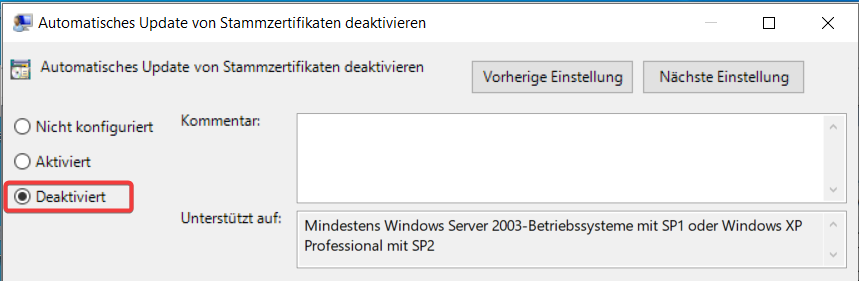
Die Einstellung der Gruppenrichtlinie zu "Deaktiviert" ändern
5. Ggf. muss ein System-Neustart durchgeführt werden, damit der ACMP Client Dienst wieder startet.
Lösung 3: Manueller Export und Import von validen Zertifikaten
Sie können auch einen manuellen Lösungsansatz verfolgen, indem Sie einen Export von den gültigen Zertifikaten von einem Gerät durchführen und diese auf dem betroffenen System importieren.
1. Führen Sie in einer administrativen CMD folgenden Befehl aus: certutil.exe -generateSSTfromWU c:\temp\root.sst
2. Führen Sie dann folgenden Befehl in einer administrativen PowerShell auf dem betroffenen Gerät aus: Import-Certificate -CertStoreLocation Cert:\LocalMachine\Root -FilePath "C:\temp\root.sst"
3. Ggf. muss ein System-Neustart durchgeführt werden, damit der ACMP Client Dienst wieder startet.