



Helpdesk Web Interface
General
The Helpdesk Web Interface is the platform where helpdesk staff can view and edit tickets, create new tickets and query the knowledge base. It is also possible to query ticket-related queries.
Page structure and login area
 Note:
Note: Access the web interface page by entering the following address in your browser: http://[ip]/Helpdesk/
- The [ip] is a placeholder for the IP address of the computer on which the web interface is installed.
The login page is the first page you see on the web interface. Enter your username and password in the input fields to log in successfully. If you have selected a different authentication setting, you may also need to log in via Active Directory. Optional, you can request your password by clicking on the button of the same name. To do this, enter the stored email address and the password will be sent to you. Otherwise, continue by logging in.
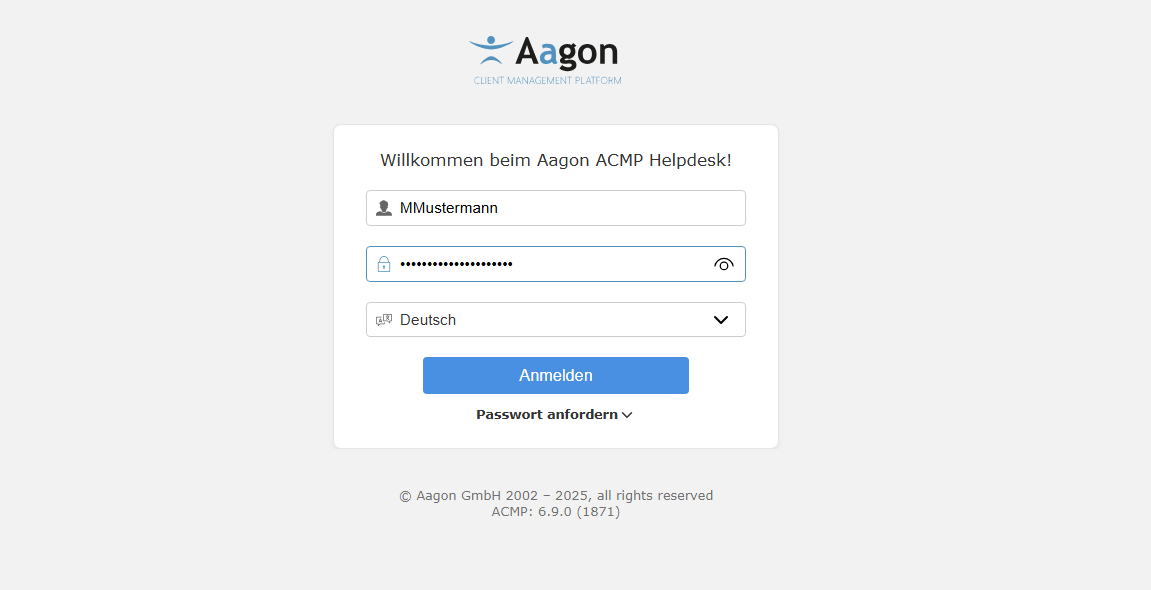
Login windows in the ACMP Helpdesk
Structure of the Web Interface
The Web Interface is divided into three areas or tabs: Info, Ticket Overview and Knowledge Base. In addition, you will find the Profile with which you are logged in and where you can change your password if necessary in the top right-hand corner.
Info
The Info tab lists the information pages that were created in the ACMP Console under the setting of the same name (System > Settings > Web Interface > Information Page) and that you have already seen when logging into the helpdesk. The prerequisite for this is that they have the status "Active" and are therefore current. If several pages are active at the same time, they are displayed collapsed one below the other. The order of the messages is identical to that in the settings.
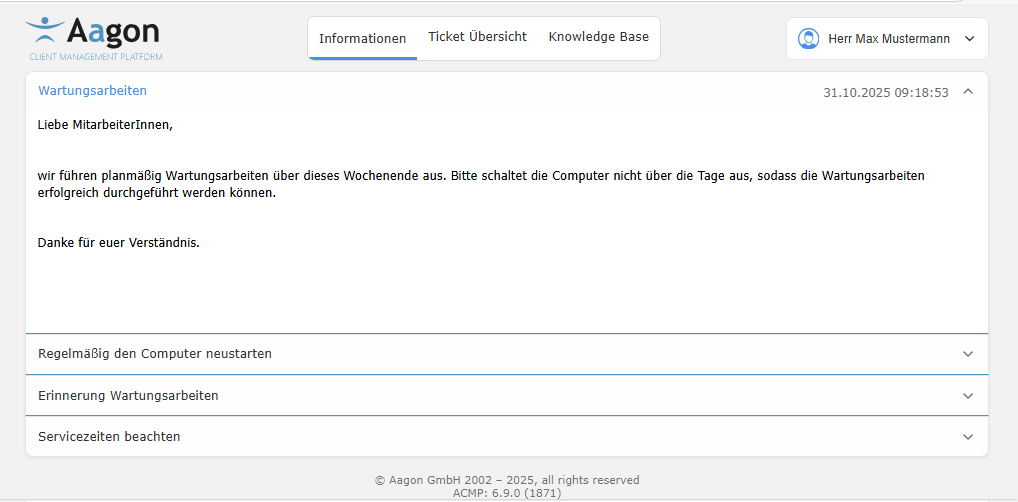
Example of various info in the helpdesk
If the display of the information is time-limited, you can specify a start and end date in the settings. The start point of the message is then displayed in the top right-hand corner.
Ticket Overview
The ticket overview is divided into two main areas: Queries and Tickets.
In the upper area, you will find ticket-related and some general queries, divided into the categories "Date Related Queries", "Default Queries", "Escalation Related Queries" and "Working Time and Costs Related Queries", which you can also find in the ACMP Console under Query Management. These Queries can be executed by double-clicking or using the button  . Select a Query for which you want to display the tickets. After a short loading process, the selected Query and the results of the Query are now displayed in the lower section.
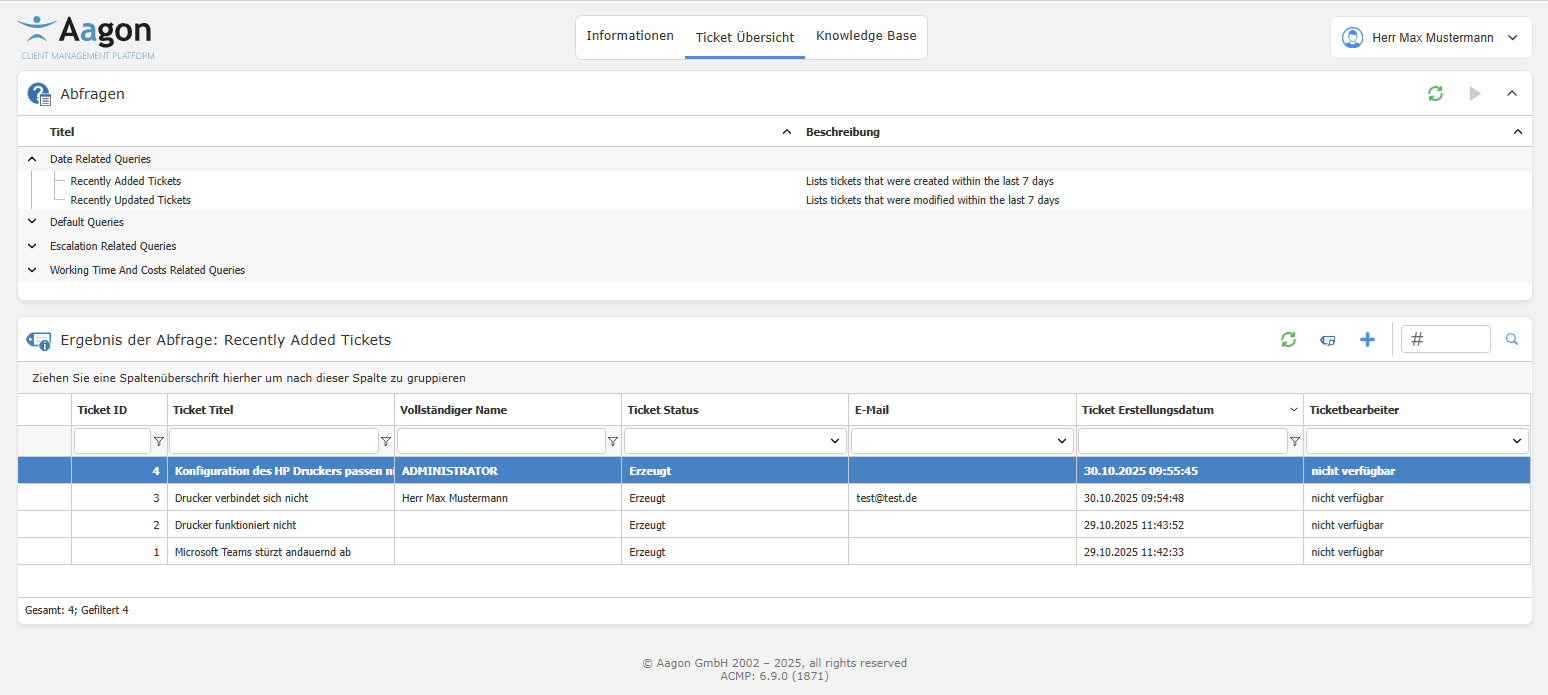
Ticket overview and generated tickets
The tickets (here for the query ‘Recently Added Tickets’) are now displayed in a grid, divided into individual column headers. Click to refresh the ticket view ( ) or click
  Show Tickets if you wanrt to view a selected ticket in the detail view. Create an new ticket
  or search for a specific one using the search bar. To customize the view according to your preferences and, for example, to display the results grouped according to a specific criterion, drag one of the columns to the top row to enable continuing sorting of the results.
Tip: For more information on this topic, please refer to the chapter Structure of a grid in ACMP, which describes additional configuration options.
In addition, you can use the input elements above each column to filter the tickets continuing according to the value entered. You can use a free filter  for the "Ticket ID", "Ticket Title", "Full Name" and "Ticket Creation Date" fields. For the two columns "Ticket Status" and "Email" a preselection is made based on predefined fields.
If the query results have been filtered, the corresponding filter appears below the results. The filter can be activated or deactivated using the selection box in front of the displayed filter. If the filter is not sufficient, it can be advanced and changed as desired. To do this, click on the filter text. A small dialogue box will open. If you click on an object here, all the options that you can use in the corresponding position will be displayed. To remove a filter and no longer apply it to the search results, click on Delete below the list.

Example of a filter that must contain the word "Printer" in the title
To hide areas, you will find an arrow in each right-hand corner, which can be used to collapse the content.
Create tickets in the Helpdesk
To create a new ticket, navigate to the Ticket Overview tab and then click on  Create Ticket. A new window will open.
Now fill in the fields for the ticket. First, assign a title that briefly summarises the problem. Below the description, you can describe your problem and apply common formatting to the text, as well as insert links or tables. If you want to embed a graphic in the text, click on Select File and upload an image. Optionally, enter some keywords for the ticket.
Using the attachments, it is also possible to attach file formats other than graphics to the ticket. To do this, click on  Add attachment and select a file. You can also add a comment if you wish.
It is possible to edit the comment in the attachment retrospectively ( ). If you want to remove the attachment completely, click on
  Delete attachment.
On the right-hand side, you must enter details about the contact who created the ticket. Click on Select contact, select the correct contact from the contact address book and confirm your entry.
The contacts stored here are identical to those in the ACMP Console (Master Data > Contacts). Within the details, you can now enter some information, such as an agent, a category or a priority for the ticket.
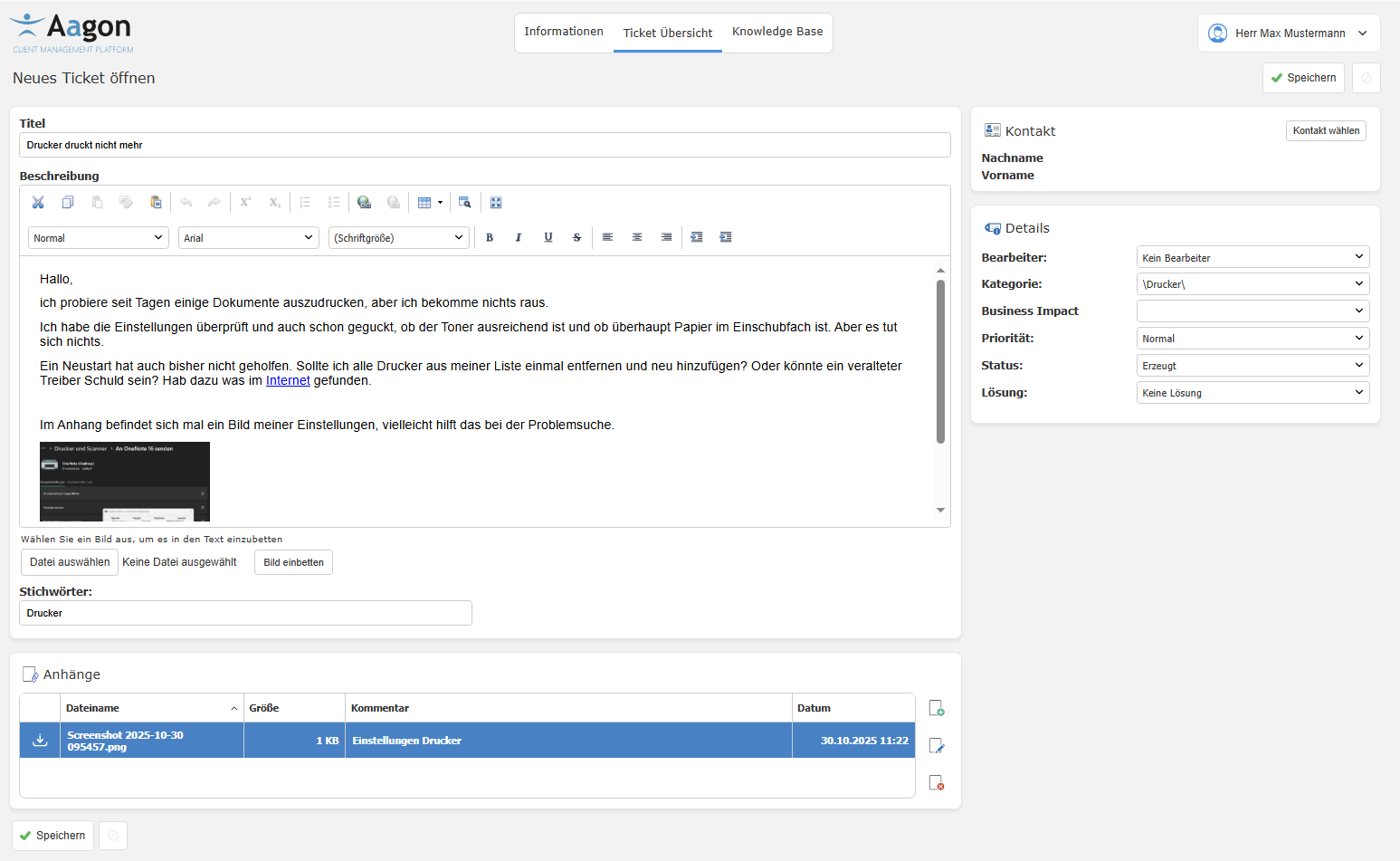
Create a new ticket
To create the ticket, check your details again and click on Save. The newly created ticket will now appear in the ticket overview.
View and edit ticket details
The ticket details can be viewed in every ticket that has already been created. To do this, double-click on the desired ticket or click on  Display ticket. The interface is almost identical to that used when creating a new ticket, except that you cannot make any active changes to the title, description, contact details and general information (creator, keywords, etc.). Instead, you have a comment function and history and can change the information on the right-hand side.
 Edit.
Edit. Whether the images are automatically displayed in the tickets depends largely on the settings you have chosen (General settings: Automatically download embedded images in the web interface). If the images are hidden, placeholders are displayed instead and you can only click on the images to load them later. You can find the images under the attachments.
As a user, you can change some information directly after creating a ticket without having to click on Edit. This data can be found in the "Info" section. Editable fields can be recognised by the icon ( ) next to them (see Processor and Status).
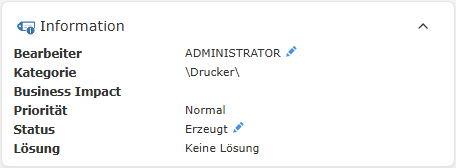
Editable fields within the info
Click on the row you want to change and enter a new editor or change the status. Select the appropriate entry from the drop-down menu and confirm the change with OK. For the status, you can choose between ‘Created’, “Viewed”, ‘In progress’ and ‘Pending’, and any changes will also be reflected in the ticket overview view. If you want to change basic information on the ticket, e.g. because additional data needs to be added to the description that has not yet been entered, or because you want to insert other keywords, you must click on  Edit. This allows you to make changes (corrections, different formatting, etc.) to a ticket that has already been created. Save your changes afterwards.
Tickets kommentieren
Wenn Sie an dem Ticket arbeiten, kann es sinnvoll sein ein Kommentar zu hinterlassen, der ggf. den Fortschritt oder die Zugehörigkeit des Tickets festhält, sollte es beispielsweise ein Team von Ticketbearbeitern geben, damit andere ebenfalls informiert bleiben. Alle Kommentare erhalten einen Zeitstempel und der Kommentarersteller wird namentlich genannt. Über die beiden Checkboxen Kommentar ist im Self Service sichtbar und Kommentar als E-Mail an diese Adressen verschicken haben Sie zudem die Optionen, Ihren Kommentar mit anderen zu teilen. Für den E-Mail-Versand ist es notwendig, dass Sie eine gültige Adresse hinterlegen. Klicken Sie dann auf Kommentar hinzufügen.
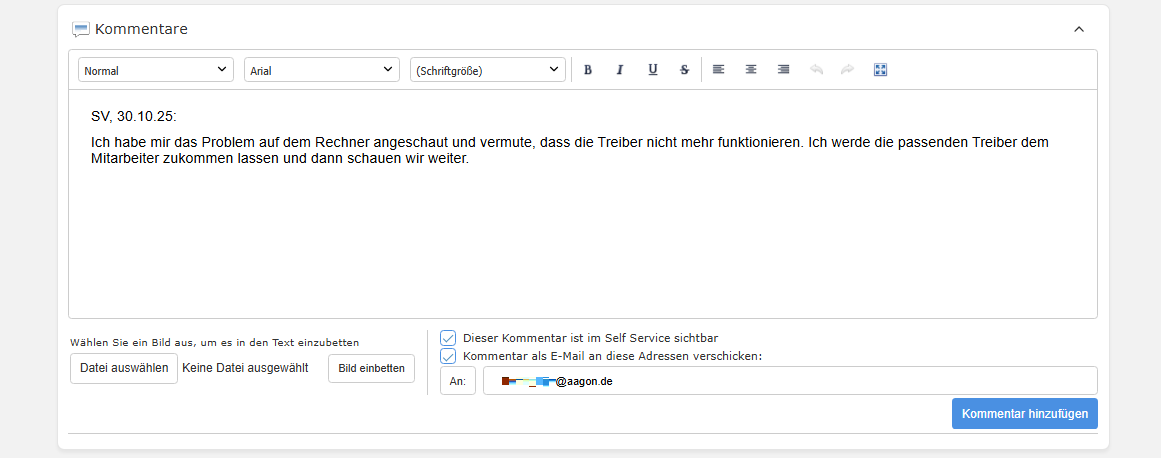
Kommentarfunktion bei der Bearbeitung von Tickets
Tickets schließen
Ein Ticket kann aus unterschiedlichen Gründen geschlossen werden: Im besten Fall wurde eine Lösung für das geschilderte Problem gefunden („Erledigt“), der Sachverhalt ist nicht nachvollziehbar oder die Angaben sind unvollständig, weshalb es nicht gelöst werden kann.
Um ein Ticket zu schließen, müssen Sie sich zunächst das Ticket in der Ticket Übersicht anzeigen lassen. Erst aus der Ansicht heraus können Sie den Button  Schließen aufrufen.
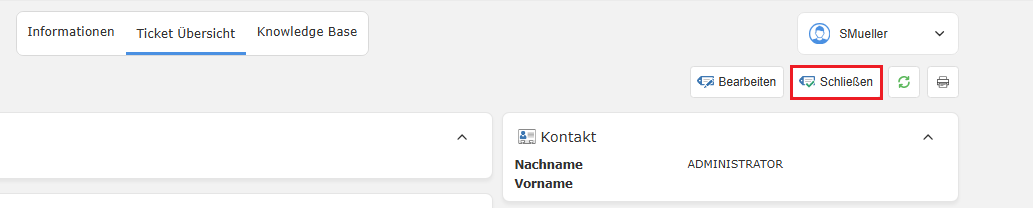
Option Ticket zu schließen
Es öffnet sich ein neues Fenster, in dem Sie die benötigten Felder (der Bearbeiter, die Kategorie sowie die Lösung) ausfüllen müssen, um das ausgewählte Ticket schließen zu können. Fügen Sie optional eine Begründung ein, weshalb das Ticket geschlossen wurde. Setzen Sie einen Haken unter Kommentar ist im Web Interface sichtbar, sollten Sie andere über den Lösungsgrund informieren wollen. Klicken Sie zum Abschluss auf Schließen und zur Übersicht um den Vorgang zu beenden.
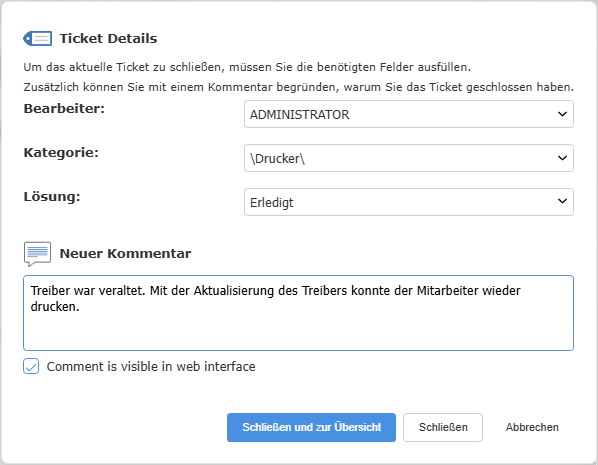
Ticket schließen inkl. Kommentar
Sollte ein geschlossenes Ticket aus Gründen doch nochmal geöffnet werden müssen, können Sie dies über den Button  Ticket wieder öffnen erledigen. Der Button ist in der oberen Leiste nur für geschlossene Tickets verfügbar.
Knowledge Base
Über den Reiter Knowledge Base sind die Knowledge Base-Artikel gelistet, die zuvor in der ACMP Console (Helpdesk > Knowledge Base > Übersicht) erstellt wurden. Der Aufbau der Artikel lehnt sich im Web Interface an der Struktur an, die in der Console erarbeitet wurde. Somit lassen sich z.B. Ordner anlegen, die verschiedene Artikel zu einem Problem oder einer Thematik zusammenfassen und bieten damit einen idealen Abgleich zu der Hierarchieebene in der ACMP Console.
Jeder Artikel ist mit einer Artikel ID und einer Überschrift versehen. Zusätzlich dazu können Sie auf der rechten Seite innerhalb eines Ordners sehen, wann der Artikel erstellt und zuletzt bearbeitet wurde. Eine Suchleiste oberhalb der Artikel hilft Ihnen dabei gezielt ein richtiges Suchergebnis zu finden, geben Sie dafür ein Schlagwort ein und drücken Sie auf  oder starten Sie die Suche mit Enter. Möchten Sie einen Artikel oder die Übersicht drucken, klicken Sie hierfür auf Drucken
  . Für die Detailansicht eines Artikels können Sie einfach den gewünschten Artikel anwählen.
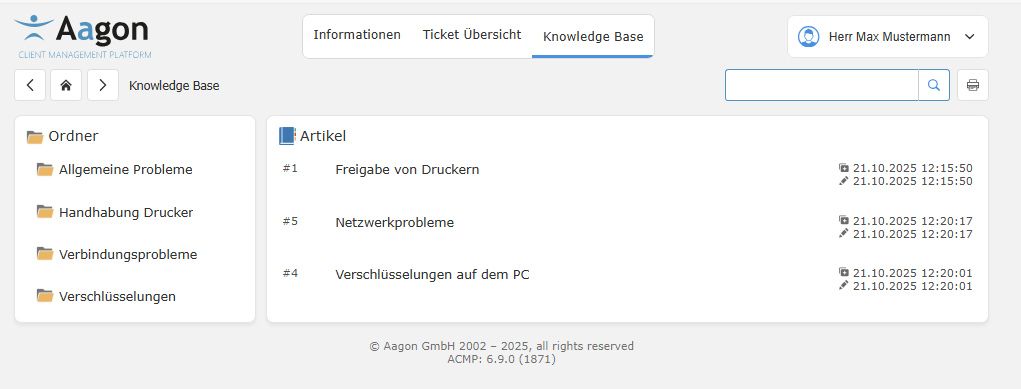
Übersicht der Artikel in der Knowledge Base
Detailansicht eines Knowledge Base-Artikels
Öffnen Sie den Artikel Ihrer Wahl. Die Artikel sind strukturiert aufgebaut: In der ersten Zeile steht der Titel des Artikels („Wie öffne ich den Software Kiosk?“) sowie allgemeine Angaben, wann und von wem der Artikel erstellt wurde, sowie ein mögliches Datum, wann der Artikel zuletzt bearbeitet wurde. In der ersten Box darunter ist die Fragestellung, welche Problematik hier überhaupt thematisiert wird. Darunter befindet sich die Antwortbox. Sollten Dateien dem Artikel angehängt worden sein (Bilder, PDFs etc.), werden diese innerhalb der Anhänge (letzte Box auf der Seite) gelistet und können separat nochmals heruntergeladen werden.
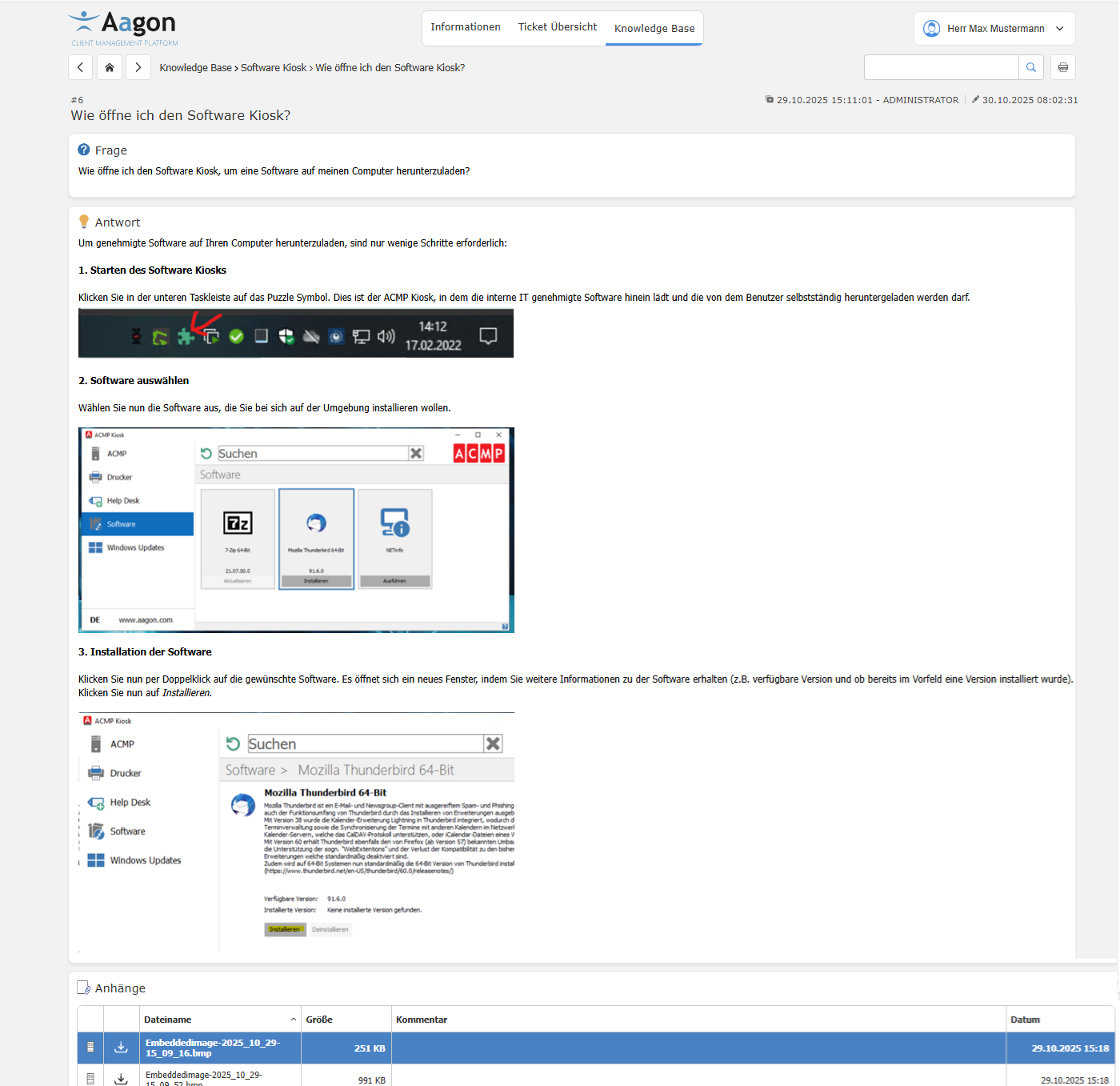
Beispiel eines Artikels in der Knowledge Base
Benutzerprofil bearbeiten
Das Benutzerprofil können Sie zu jederzeit, unabhängig davon, wo Sie sich gerade im Web Interface befinden, oben rechts über die Schaltfläche öffnen. Der hier hinterlegte Benutzername setzt sich aus den Angaben des Kontakts (Stammdaten > Kontakte) zusammen. Klicken Sie auf die Schaltfläche > Profil und Sie sehen die Angaben zum angemeldeten Benutzer. Sie haben hier die Möglichkeit das Passwort zu ändern. Geben Sie dafür das aktuelle Passwort ein und vergeben Sie in den beiden Zeilen darunter ein neues und klicken Sie abschließend auf Passwort speichern.
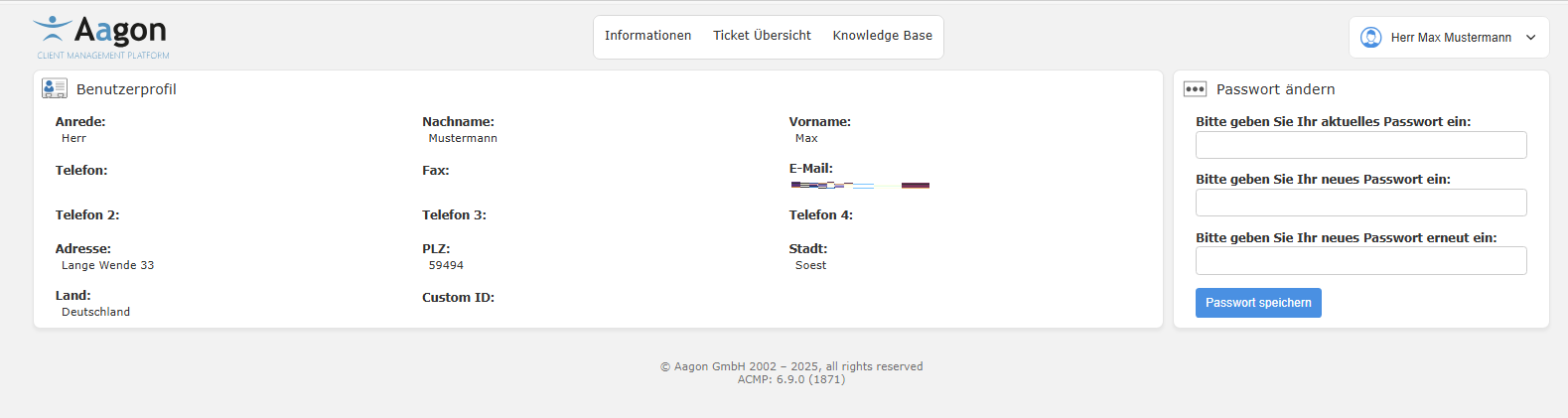
Ansicht des Benutzerprofils im Web Interface