



Display Fields
General
As soon as you create a new query, you have to select the fields you want to include. These fields serve as the basis for everything that is checked or displayed within your query. Depending on the query base you select, different fields will be displayed. You can add as many as you like or remove any fields.
Some fields have special features, which are explained below:
Managed Software: Managed Software released update available
For Managed Software, you have the option to select the display field ‘Managed Software released update available’.
This field indicates for each installed managed software on a client whether a higher version of the installed managed software has already been released and can be updated to. ACMP checks this and returns the value Yes or No as a result.
Example: You have installed the data compression program 7-Zip with version number 19 on your client. The next higher released version of 7-Zip is still version 19. As a result, the display field for this program remains filled with the value No because there is no version to update.
If version 20 is released at a later point in time and the value in the table shows No, the entry may not yet have been updated. To do this, you must have executed the Managed Software Scanner (Client Management > Agent Tasks) once in the meantime. Only then will the values be updated and the fields will be rechecked, resulting in Yes being entered in the table.
ACMP Client: Is a candidate for a duplicate ClientId
Using the display field Is a candidate for a duplicate ClientId, you can build targeted queries in which you are automatically informed of the occurrence of suspicious clients. You may encounter suspicious clients in queries while working with the ACMP Console if a client has a warning triangle icon in front of it. A suspicious client is a client whose Client ID is not unique and is used by at least one other agent. Suspicious clients can appear in all client-based queries (e.g. in the containers, Assets or linked tickets).
If several agents use the same Client ID, all these agents store their data under the same dataset in the database. This means that only the values of the last registered client are displayed in a query. When entering the scan data, the computer name is also regularly overwritten by the agents. These changes are registered and stored. If a certain computer name is stored at least twice for a Client ID due to this name change, this Client ID is considered a suspicious client.
If you use the display field Is a candidate for a duplicate ClientId, this field is listed in the result set and filled with Yes or No because it is a ‘Yes/No filter’ type. Read here how to avoid this condition and remove a suspicious client.
ACMP Client: Parked ACMP Version
The ‘Parked ACMP Version’ display field shows you which ACMP Agents already have an ACMP update locally and which do not. The field helps you to filter specifically for only those clients that have a specific update version parked on them. This can be important, for example, in large environments with many clients, if only a selected group of clients should initially receive or have an update installed (e.g. new updates are released in waves so that not all computers are blocked at the same time). The ACMP Update plugin (System > ACMP Update) displays how many clients have so far cached the update within the distribution information. This makes it possible for an administrator to provide an update locally to a group of clients in advance, without it having to be downloaded or installed directly. This can also be done at a later time (see ACMP Update). At the same time, you can also use the display field ‘Installed ACMP Version’ to get the current status.
ACMP Client: The client is in the container
The display field allows you to filter within a query whether a client is present in a container or not. Using the IN operator, you can now specify which containers should be checked. To do this, use the display field ‘Client is in container’.
The previous procedure for checking a client within a container was to filter this information using the container path (Container > Container Path). With a large number of containers containing many clients, the filter was very slow and sometimes displayed incorrect results, as the container path filter only took into account the data from the last recalculation.
 Note:
Note: Example: If you have created a container structure divided by company location, for example, you can use the display field to select the parent location and access all containers below it via the path specification (e.g., "\01_Locations%").
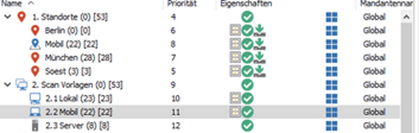
Example Container structure
Ensure that for newly created containers, the scheduled server task "Generate value directory" (System > Settings > ACMP Server > Scheduled Server Tasks) must first be triggered so that the list of available containers for the display field is updated.
The order in which the containers are calculated depends on the priority column: the calculation is performed from top to bottom, with containers on the same level being sorted by priority and determined first.
Explanation of how to calculate the sequence of an example container structure:
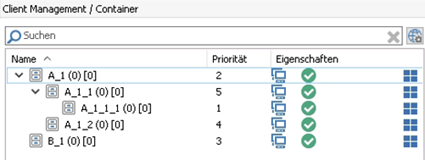
Example container structure to explain the order of recalculation
The containers are calculated in the following order when recalculating:
| Order of recalculation | Container name | Explanation (priorities are indicated in brackets) |
| 1 | A_1 | The root container with the highest priority (2) |
| 2 | A_1_2 | The container has a higher priority than its sibling container A_1_1 |
| 3 | A_1_1 | |
| 4 | A_1_1_1 | Despite being given the highest priority (1), it is calculated relatively late |
| 5 | B_1 | Container B_1 (5) is only calculated after all subcontainers of A_1 have been calculated |
If the display field is used, the ACMP console checks whether the filters of the referenced container are calculated before the current container. If this is not the case, an error message appears for all incorrect containers, including the respective container paths.
ACMP Container: Calculation time of the SQL filter (ms)
With the display field ‘Calculation time of the SQL filter (ms)’ (query basis Container > Calculation time of the SQL filter), you can build a query to check how long individual containers need for a Recalc. This allows you to check whether you can still make changes (for possible optimisation) to the filter.