



ACMP Licenses
Notes on ACMP Licensing Starting with ACMP Version 6.6
Due to a general transition of Aagon’s licensing model to ACMP online licensing via a license server, you will need a server license key. This key is entered in advance in the ACMP Console and then retrieves all of the customer’s license information from the license server—that is, how many licenses have been purchased for which solutions. With online licensing, the customer’s license information will be automatically downloaded and updated in the future.
This means: Each customer receives a single 32-digit Server license key, which must be entered once and is valid only for that customer.
You will automatically receive the license key from Aagon, which is valid from the date of issuance and has no expiration date.
 Note:
Note: As soon as you receive an email from Aagon containing the server license key, you should take the following steps:
| The ACMP Server must allow access to the following license servers: | |
| At least one ACMP Console must allow access to the following update servers: |
Also check the required URLs to make sure you have already marked them as trusted and approved them.
To import the Server license key, follow these steps:
Step 1: Update ACMP to version 6.6 or perform a fresh installation
First, you must update your console to version 6.6.0 via System > ACMP Update or, if you are installing ACMP for the first time, perform the initial installation of the acmp console.
Step 2: Enter the server license key
A window will open where you can enter the server license key.
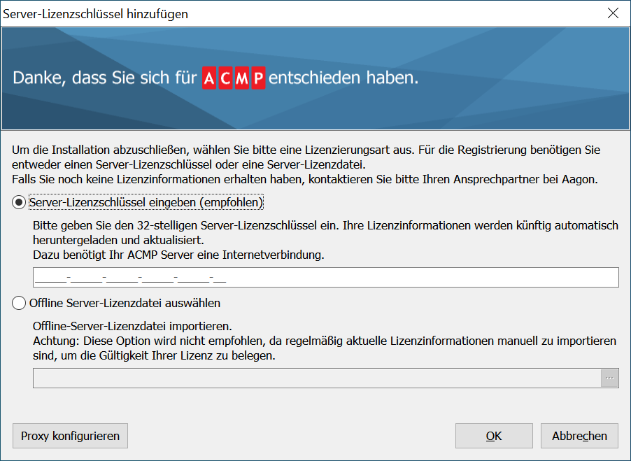
Enter the Server license key or offline Server license file
Enter the server license key from the email you received under Enter Server License Key.
In the rare case that you are using an offline environment, you will also receive an offline file in ZIP format that can be imported.
To do this, enable the radio button Select Offline Server License File and click the icon  . Then import the file LicencePackage.zip.
Under Configure Proxy, you can choose whether to use the system's default proxy settings, a manual proxy configuration, or proxy authentication.
Then click OK.
You can now use the ACMP Console.
Overview of ACMP Licenses
The ACMP Licenses plugin provides an overview of all licenses for the individual solutions that you have purchased for ACMP.

ACMP Licensing Plugin
In addition to the solutions you use in ACMP, you’ll see information about the number of licenses purchased for each solution, license usage, and license types:
The license types are categorized as Licensed, Unlicensed, and Evaluation - that is, EVAL licenses or trial licenses.
When you click on a solution in the list view, a detailed view of the solution and its current licensing status opens in the right half of the workspace.
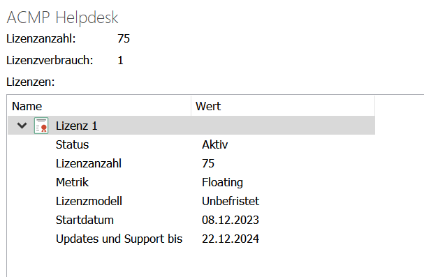
Licensing the ACMP Helpdesk solution in the Details View
The following information is submitted for licensing purposes:
| Name | The name of the license is displayed. |
| Status | The status indicates the condition of the licenses, which you can accept after the license server has verified them. This determines whether and how you can continue working with the licenses. Active The license is active and in use. Expired The license expiration date has passed. The license can no longer be used. Pending The license start date has not yet been reached. The license cannot yet be used. Threshold Exceeded The response threshold has been exceeded. This may be due to the following reasons:
The license was not validated and can therefore no longer be used. Error An error occurred during license validation. This may be due to the following reasons:
The licenses cannot be used. |
| Number of Licenses | The “Number of Licenses” field indicates the total number of licenses purchased. |
| Metric | The licensing metric specifies how ACMP counts individual licenses and their usage. Floating
Node-Locked
Per Asset
|
| Licensing Model | The licensing model specifies how long a license remains valid. Perpetual
Subscription
Evaluation
|
| Start date | This entry displays the start date of the licensing period for this solution and its licenses. The licenses may have different runtimes. |
Finish Date / Updates and Support Until | This field indicates the end date of the license term for these licenses. Finish Date
Updates and Support Through
|
Refresh License Information
If, for example, new licenses for ACMP have been purchased and this status change needs to be updated immediately, you can queue the Update Server License server job.
To do this, click  Refresh License Information on the ribbon bar.
Enter Server License Key
Generally speaking, the need to re-import a server license key will rarely arise as long as you are working in a normal ACMP environment.
However, if you are working in an offline environment, you must manually import your offline file on a regular basis.
For both scenarios, proceed as follows:
1. Under System, navigate to ACMP Licenses.
2. Click  Enter Server License Key on the ribbon bar. A window will open:
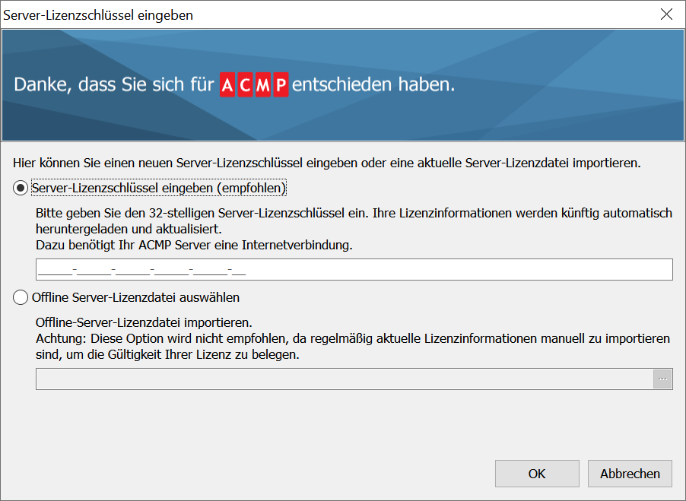
Importing the Server license key or the offline Server license file
3. Enter the server license key from the email you received under Enter Server License Key.
4. If you are using an offline environment, you will also receive an offline file in ZIP format that can be imported. To do this, enable the radio button Select Offline Server License File and click the icon .
5. Then import the LicencePackage.zip file.
6. Next, click  Refresh on the ribbon bar.
Your new server license key has now been imported, and the license information has been updated.