


Automatic Rejection of Third-Party Updates
Initial situation
It may happen that, instead of revoking the update, third-party providers delete the installation files from their web servers, which can cause the setup download to fail. The required download of the files cannot be finished successfully and instead exits with error code 404. In such cases, you previously had to use the Server Monitor to locate the relevant execution, open the job execution details there to find the error or the affected file, and use the SQL statement to determine which Updates were involved. This was followed by manual exclusion (declining the update) via the Windows Update Management Plugin (Updates > Decline Update).
With ACMP version 6.10, it is now possible to create a filter that specifically denies such missing files. To do this, all updates with a specific status code are automatically denied.
Procedure
- Go to the Windows Update Management settings (System > Settings > Windows Update Management) and open the Automatic declination of Windows Updates menu item.
- Check the box next to “Automatic declination of Windows Updates” to enable the filter configuration on the right side. Then click
 to open the filter.
 - In the newly opened window, “Filter for Automatically Declining Updates,” select the display field “Last Download HTTP Status Code” (Windows Update Management > Update Files) from the available fields and drag it to the right-hand side.
- Set the operator to “equals” and insert the error code “404” in the empty field next to it. Click Next >.
- Review the preview of the Windows Updates that will be automatically denied by the filter. Then click Finish.
- Save your changes in the ribbon bar.
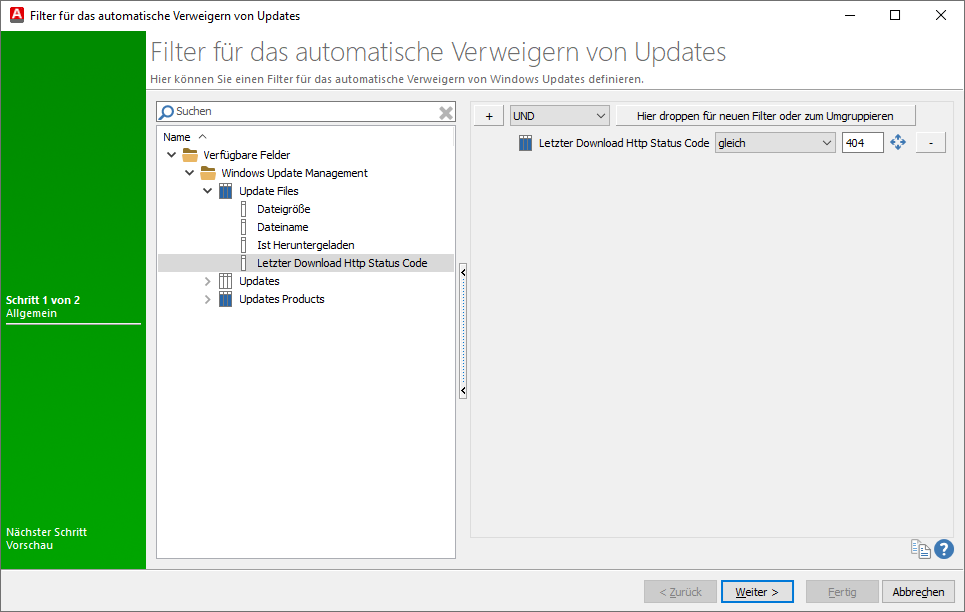
Filter for automatically denying updates
With this newly configured filter, updates that are no longer available on the manufacturer's web server or that cannot be downloaded during a setup download are automatically denied.