



Configuration Options for Managed Software
Managed Software offers several configurations to help you tailor your workflow as much as possible. These include, among other things, Scheduled Server Tasks and jobs in the Agent Tasks, as well as the test and release processes you can create for each software package.
Jobs and Tasks
Managed Software requires server jobs and tasks to run smoothly. These jobs are designed, among other things, to check for software versions that are already installed or available on a client, or that are required (Agent Tasks). Server tasks, among other things, download new versions or update the software catalog. You can assign a start condition to both the Agent Tasks job and the server tasks, which you can customize based on your environment. The jobs and tasks run at intervals and sequentially, one after the other. You can check the sequence in the monitors (including the Job, Client, and Server Monitors).
Agent Tasks (Client Management > Agent Tasks)
| Agent Task | Description | Recommended Start Condition |
| Managed Software Scanner | The Managed Software Scanner scans the managed software installed on the client. Using the scan function, the ACMP Server identifies any discrepancies between the installed version and the available version that the client has installed. | Run daily (maintenance windows are ignored) |
 Note:
Note: Scheduled Server Tasks (System > Settings > acmp Server > Scheduled Server Tasks)
| Server Task | Description | Recommended Start Condition |
| Managed Software cleanup | The server task deletes the Managed Software versions that are no longer needed, thereby freeing up storage space | Start every day |
| Managed Software catalog Update | The job downloads new software versions of the managed software included in the subscribed packages. If necessary, the job can also be started manually in the Managed Software Dashboard. | Start every day |
| Managed Software version download | Updates the software catalog for Managed Software | Start every day |
Customize the Test and Release Process
In the section “Defining the Test and Release Process,” learn more about what a test and release process is and why you need it. You’ll also find helpful tips there on what to keep in mind during configuration.
Changing Software Package Parameters
Under “Configuring Software Package Parameters,” you’ll find helpful tips on what parameters are in general and how you can change the respective values for a software package.
Track Managed Software Jobs in the Monitors
Once you have created jobs in Managed Software, you can view the current status and results of finished jobs in the monitors. This info is available specifically through the Job monitor. To do so, filter by the content “Managed Software.”
If, on the other hand, you want to check the status of a specific software package, you can do so via the Tests tab in the open Managed Software window. To do this, select the desired software package and version number. A details window will now open on the right-hand side, displaying a table that lists all jobs in which the current software version was executed on a Client within a test ring.
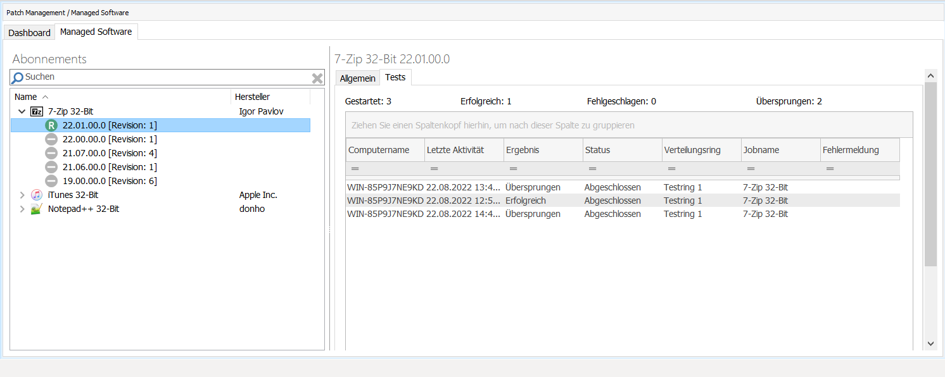
Managed Software's Insight
Once a job is finished, you'll find the result in the corresponding column of the table. Double-click any job in the table to open its log entries. There, in the Description column, you may find the reason for the result ( ) of the execution and an error message.

Preview of the job's log entries
What statuses can a finished Managed Software job have?
If a job has been executed and has the status “Finished,” this does not necessarily mean that the job was exited successfully. A distinction is made between the following results:
| Result | Causes |
|---|---|
 Failed Failed | The job was executed, but the defined actions could not be completed successfully due to one or more errors. |
 Successful Successful | The job was executed, and the defined actions were successfully completed. |
 Skipped Skipped | The job was executed and no error occurred; however, the defined actions were skipped because the intended target of the action already exists. Thus, while it would be possible to perform the action, it is not necessary. |
Example: For a software package, the action Install or Update is specified in the parameters. This job is then executed and finished. However, the result displayed is not Successful but Skipped. The reason for this is that the intended goal of the action - in this case, “The software package is installed on the Client in its current version” - has already been met. Therefore, there is no error with the Install or Update actions; rather, they could have been executed successfully if the action’s target had not already been met. | |
 Without a License Without a License | The job was executed, but the defined actions could not be completed successfully because those actions require one or more specific acmp licenses that you do not have. |
If you want to view detailed information about a software package's job, you can open it by double-clicking on the job. In the new window, you can then double-click on a job in the Executions table to open the job's log entries. There you will find the reason for the execution result and, if applicable, an error message.