


Rules
Using the rules, you can locate files on Clients and also find registry keys and values. This allows you, for example, to check whether certain scripts or standalone software (software that does not require an installation process) are present on the Clients. This way, you can integrate paid standalone software into license management or even detect games.

Rules
Using the icons on the quick-select bar, you can delete rules, create new rules, and make new directories to organize your overview. In addition, you can display containers whose Clients are affected by the current rule, provided that the current rule is also assigned to the corresponding containers.
The rules can now be executed on clients in two different ways: first, by assigning the rules to the containers in which the clients are located, and second, by selecting the relevant rules here in the overview. If rules are selected in the overview by checking the boxes, the rules are executed on all clients, regardless of the container assignments of the rules and clients.
Create a rule
To create your own rule, select a folder and click the “Create New Rule” icon in the quick access toolbar. A dialog box will open, allowing you to easily create your new rule.
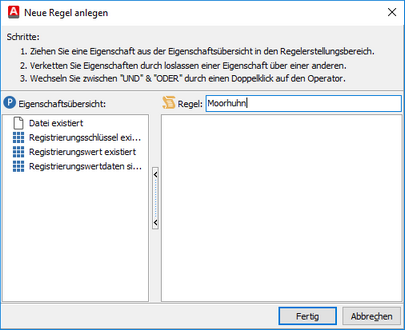
Create a new rule
First, enter a unique name for the rule in the “Rule” field. You can then drag and drop a property from the left side of the dialog box to the right side. Another dialog box will open so you can continue to specify the property. Once you have specified the property, it will be displayed in the previous dialog box.
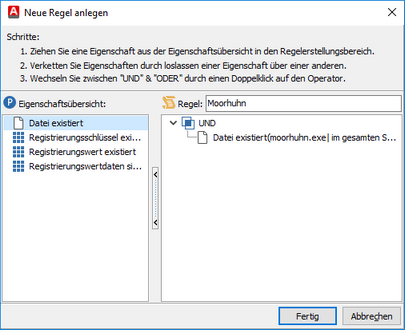
Rule properties
Here, you can now define additional properties using drag-and-drop. By clicking on the operator, you can switch between an “AND” and an ‘OR’ combination of multiple properties. Then click “Done,” and the new rule will be available to you.
The Properties of a Rule
There are four properties you can use to define a rule. Below is a list and explanation of all four properties.
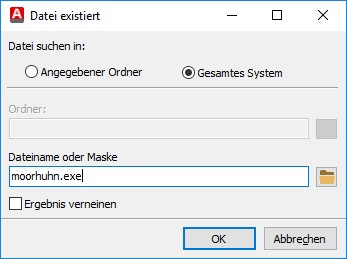
Property: File existsYou can use this property to check a client for a specific file. To do so, first specify whether the file is located on the entire system or in a directory that you can specify. Finally, you can specify the file name, using the standard Windows wildcards. Additionally, the result can be negated. |
|
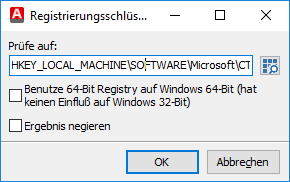
Property: Registration key existsYou can use this property to check whether a specific registry key exists on Clients. To avoid having to enter these keys manually, you can click the Browse button to open a window displaying the registry and simply select the key. Additionally, you can negate the result. |
|
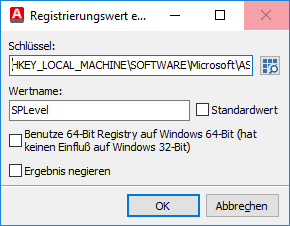
Property: Registry value existsThis property allows you to check on Clients whether a specific registry value exists. To avoid having to enter the key and value manually, you can use the Browse button to open a window displaying the registry and simply select the key and value. The “Default Value” option indicates whether the value (default) exists. Additionally, the result can be negated. |
|
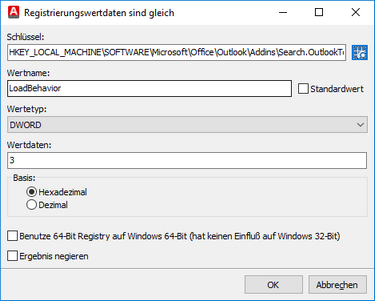
Property: Registry value is equalThis property allows you to check on Clients whether a specific registry value matches a value you specify. To avoid having to enter the key and value manually, you can click the Browse button to open a window displaying the registry and simply select the key and value. The value type and value data are entered automatically and can be customized. The “Default Value” option specifies whether the value (default) exists. Additionally, the result can be negated. |
|
 Note:
Note: